Table of Contents
Thank You for Choosing Muro Box
Thank you for choosing the world’s only app-controlled music box. Muro Box can play all of your friend’s memories in one music box.
This guide is for product setup and everyday use. If your music box is a gift, feel free to share this page with the recipient. It covers:
- Offline operation: use the music box without a connection, with simple controls for family members of any age.
- App connection: explore the melody library, compose on your phone, edit playlists, and use more app features.
- Troubleshooting: find the right support channel when something needs attention.
N20 Lite Product Tutorial
1. Offline Playlist
After you insert the power cable into the N20 music box’s “15V 3A” slot, you can hear the music box start to play a short default melody (do mi sol si do), which means your music box is ready to play music.
Next, push the knob on the back side of the Muro Box-N20, and it will start to play your customized melody or the default playlist (30 songs in our Muro Box-N20 Official Playlist).
If you wish to adjust the sequence of these melodies, simply drag and place the melody in the offline playlist through the Muro Box app after completing the connection between the music box and the app.

How to Use the Knob
Press once: Play/Pause
Turn right: Next song
Turn left: Previous song
Please Note
- We recommend that the music box be played continuously for a maximum of 2 hours, then allowed to rest and cool down for 30 minutes before resuming. Proper rest periods help prevent shortening of component lifespan.
- If condensation appears inside the lid after long periods of playing, do not worry. Turn off the power and let it sit until the mist dissipates, then you can continue using it. All internal components are coated with professional anti-rust oil that is heat-resistant.
- Do not open the lid and apply other lubricants yourself, as this may damage the original protective coating.
- If you need long-duration playback, set the playlist to scheduled playback. Keep at least a 30-minute interval between the start times of each playlist to protect the hardware components from wearing out too quickly. See the instructions for scheduled playlist playback.


2. App Functions
Connect the App and Music Box
Download our free app from the App Store or Google Play by searching for “Muro Box”.
Pair the app and the N20 music box for the first time:
(1) After you log in to the Muro Box app, tap the gear icon to open the settings page.
(2) Accept firmware update notifications, then tap “Muro Box Connection Setting”.
(3) Follow the app’s four-step instructions to complete Wi-Fi setup. Tutorials are available for both platforms:
- For iPhone users: iOS Wi-Fi connection tutorial
- For Android users: Android Wi-Fi connection tutorial
Troubleshooting
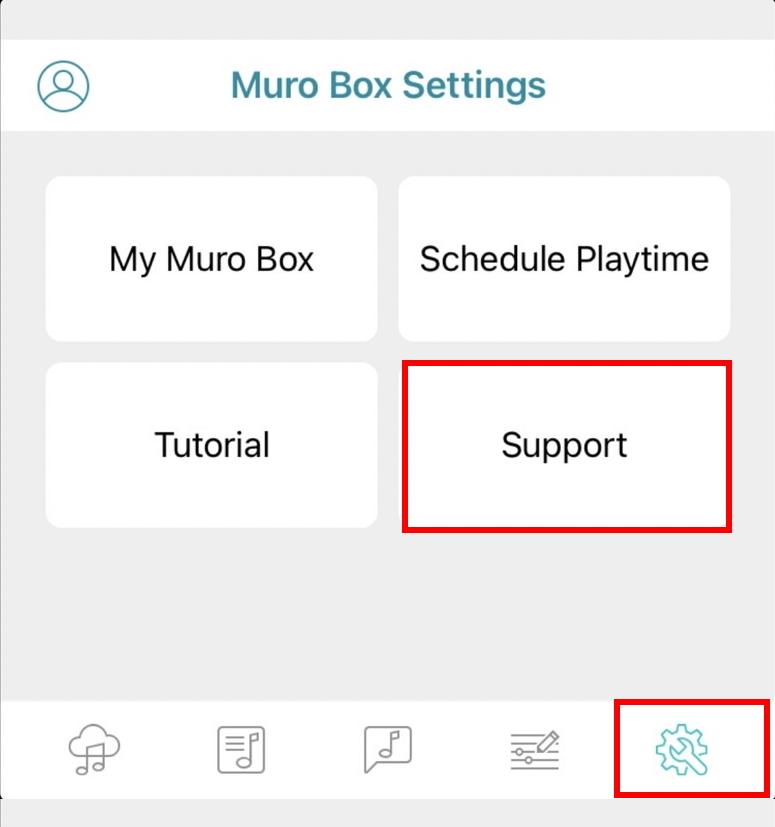
Open the app, go to the settings page, tap “Support”, and fill out the troubleshooting survey.
Our customer support staff will forward your report within one day so our engineering team can answer it during office hours in Taiwan.
When you send a troubleshooting request through the app, it automatically records your phone version, app version, and product serial number to help our engineers debug the issue.
3. How to Search Melodies in the App
Try various keywords to see if someone has already created a music box version of your favorite singer’s song, a movie theme, a video game theme, or another familiar melody. You can also try keywords such as Disney or Studio Ghibli to discover famous melodies arranged by our global customers.

If the app search results are limited, explore more melodies from the world’s largest online music box community, Music Box Maniacs (MBM), and follow the tutorial to import a MIDI file into the app.
If the methods above do not help you find a satisfactory music file, consider purchasing our customized arrangement service.
4. Compose Music via Muro Box App
All Muro Box products include the same app functions, including composing music directly in the app. With a few taps, you can enter notes and complete a melody while Muro Box performs it instantly, like your own personal pianist.
Essential Guide to Music Box Arrangement
- File format limitation: Muro Box can read only single-track MIDI files and does not support other formats.
- Note range limitation: N20 range is C3 to A5, white keys only, excluding black keys. N40 range is F2 to A6, excluding F#2, G#2, A#2, and C#3. Middle C = C3 (261.6 Hz). Before using arrangement software, confirm that middle C is set to C3 or C4 so the music box plays the correct pitch range.
- Playback speed limitation: At BPM 120, the shortest continuous note unit is an eighth note. This means the fastest continuous single notes can play at 120 notes per minute. The maximum number of simultaneous notes is 10.
For recommended arrangement tools and external MIDI keyboards, click here. You can also read How to Bring Your Arrangement Creativity to Life with a Music Box for more techniques.

5. More Features Await You
For a detailed introduction to Muro Box features, see the first question in our FAQ, “How to Use Muro Box.” It links to blog explanations for each feature and setting.
Welcome to Join Our Global User Community
This is an international group for discussing how to use Muro Box and its app to create wonderful melodies for you and your loved ones.
This group is available only to customers who have already purchased Muro Box.
Please carefully answer the three questions when joining:
- Have you liked the Muro Box Global Fan page already? If not, please go give it a like.
- Have you purchased a Muro Box already? Yes/No
- Please provide your customer name and the email you used with Muro Box.
What will we share in this group?
- Tutorial videos and handouts
- App-related announcements: troubleshooting, version updates, and new-feature surveys
- Melodies and composers we recommend
- Melody composing requests and contests