
N40 Sublime/N40 Standard
Product Tutorial
Table of Content
Please read this N40 music box tutorial first before unboxing your music box.
① Resonance Box
Must Read how to install the sound post and keep which button unpressed.
②Offline Playlist Setting
Start playing music box without app connection via WIFI
③ APP Functions
Explore melodies on the app, edit your own music and playlist, etc.
④ Connect with a MIDI device
Import midi files directly from your computer or how to send midi messages via your MIDI Keyboard.
⑤ Troubleshooting
How to record a problem to let our engineering team help you.
Please Note:
- We recommend that the music box be played continuously for a maximum of 2 hours, then allowed to rest and cool down for 30 minutes before resuming. Proper rest periods help prevent shortening of component lifespan.
- If condensation appears inside the lid after long periods of playing, do not worry. Simply turn off the power and let it sit until the mist dissipates, then you can continue using it. All internal components are coated with professional anti-rust oil that is heat-resistant.
- Do not open the lid and apply other lubricants yourself, as this may damage the original protective coating.
- If you have a need for long-duration playback (e.g., more than 2 hours), we recommend setting the playlist to scheduled playback. Please ensure that there is at least a 30-minute interval between the start times of each playlist to protect the hardware components from wearing out too quickly. You are welcome to check the instructions for setting up scheduled playlist playback.
N40 Product Tutorial
1. Resonance Box
The Product's Packaging Box is the N40 Resonance Box!
Assemble it by following the steps:
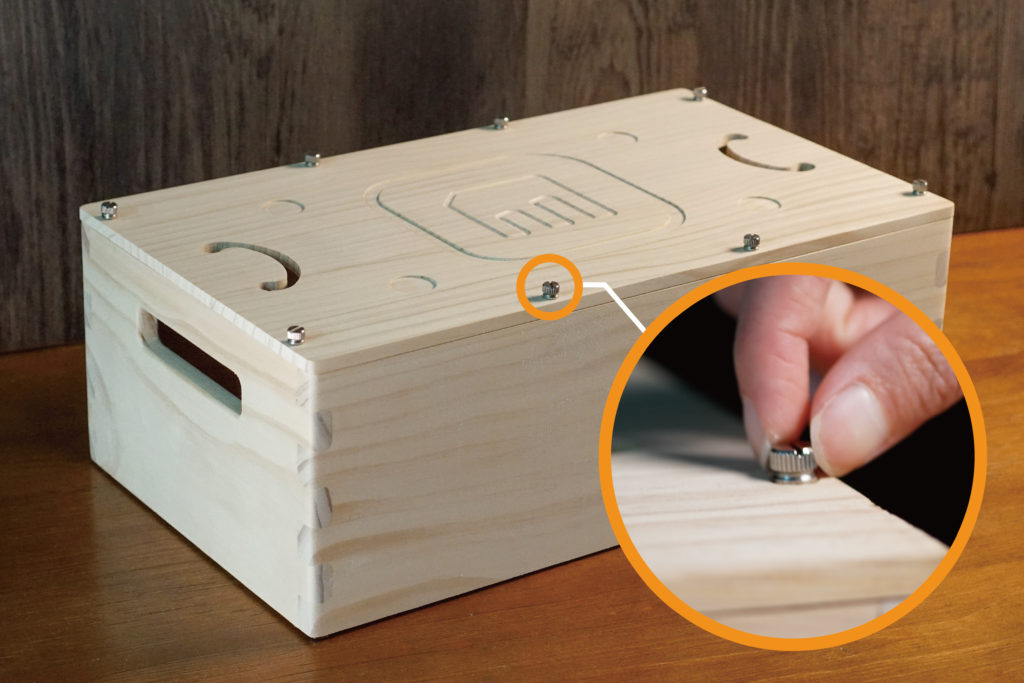
(1) Use your fingers or a screwdriver to remove the 8 hand-twist screws.
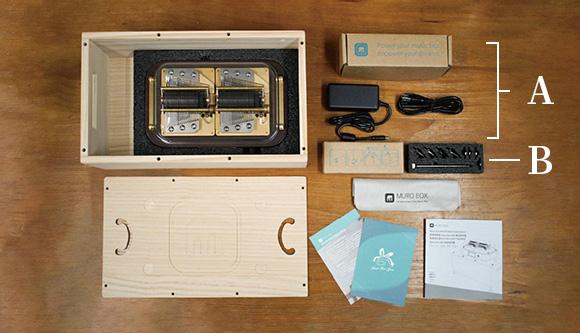
You can see inside the resonance box, there are the N40 music box, the scratch protection cover for the music box lid, the music box’s outer box which also serves as the resonance box, the user manual, and the brand introduction card.
Box A: Power cord, USB-C adapter.
Box B: Sound Post x1, shock absorber x4, metal pad x4.
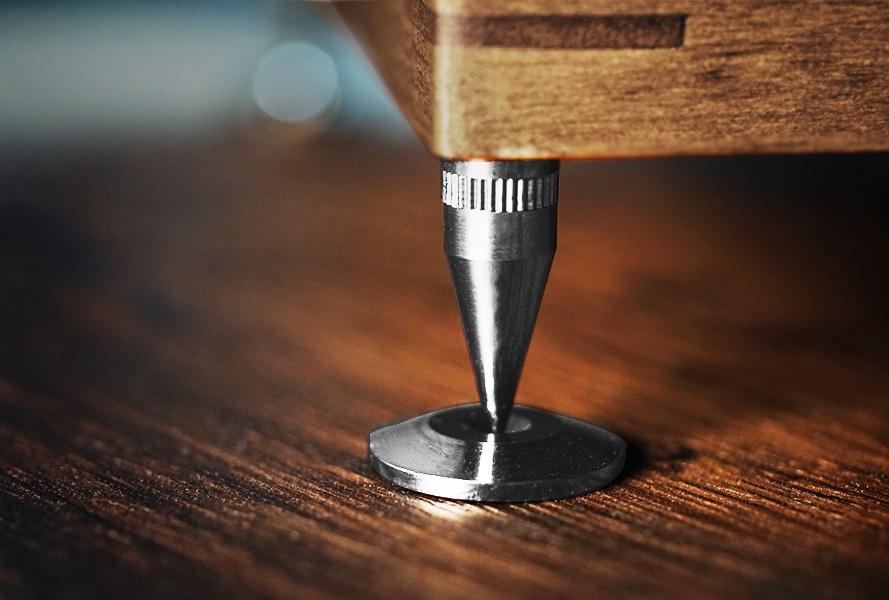
(2) Screw the 4 shock absorbers into the 4 corners’ holes under the resonance box.
Place the 4 shock absorbers above their pads to prevent the shock absorber scratching the table surface.
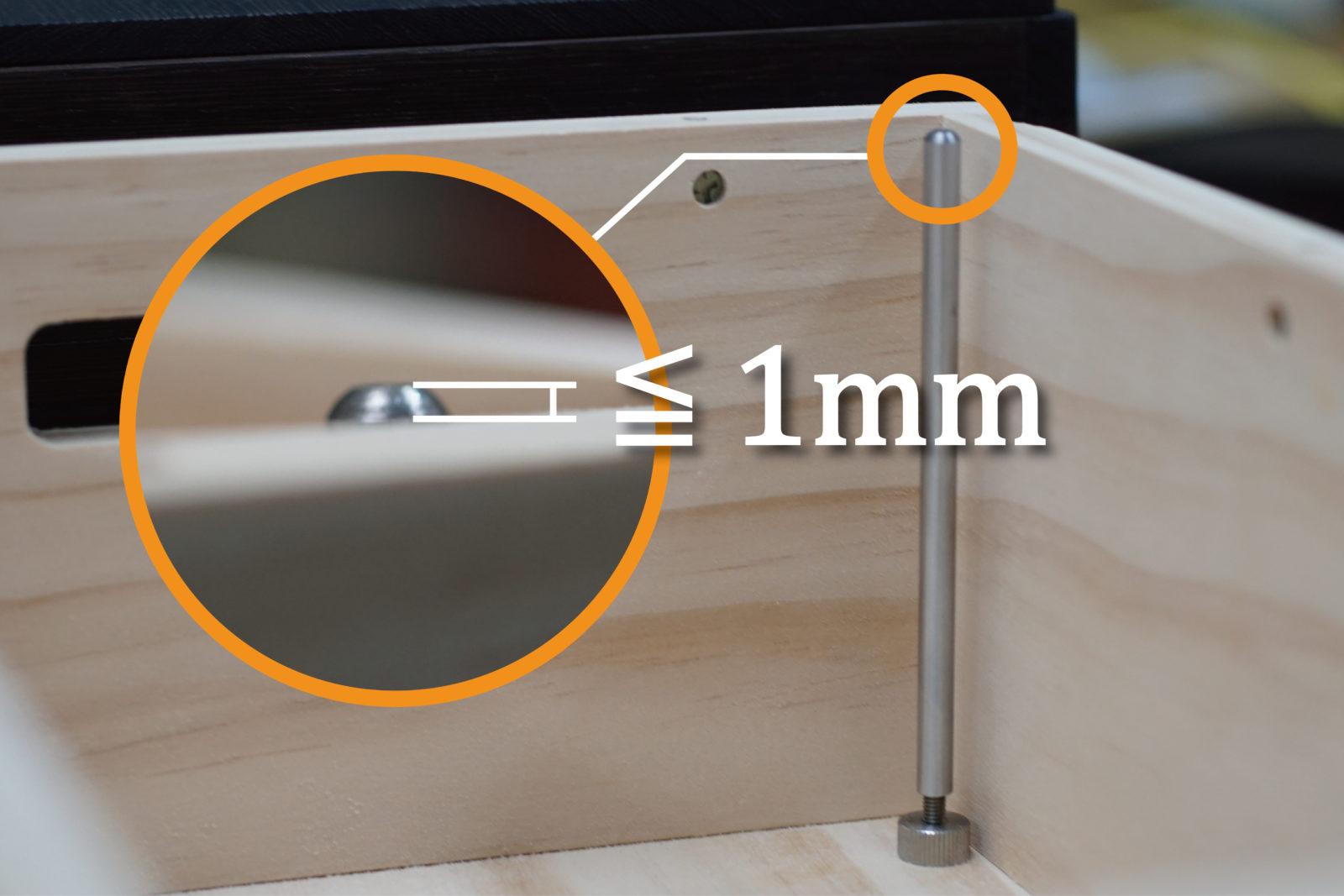
(3) Next, place the sound post to increase sound transmission and support the weight of the music box on the top board.
First, adjust the sound post to the appropriate length, then check the length against the edge of the resonance box. The goal is to have the sound post “just” protrude slightly above the resonance box to touch the top board. As long as there is slight contact, it is effective.

Do not extend it too much, as it may cause the top board to crack. Please be careful to control the height of the sound post to make it not too much taller than the margin of the resonance box (the taller part needs to be less than 1mm).
(4) The position of the sound post can be placed according to your preference. Place the top board on the resonance box to feel the contact position of the sound post, or confirm the placement of the sound post from the side lifting holes. Then, screw the hand-twisted screws to fasten the top board on the resonance box. Be sure to tighten the hand-twisted screws to avoid noise during music box playback caused by vibration.
(5) We’ve left a little fun for you. In addition to placing the sound post in the middle, you can try placing it in other positions to hear the sound effect. Once you find your favorite position, remember to ensure that the hand-twisted screws on the top board are tightened when experimenting with the sound effect.
(6) The C-shaped sound hole on the top board of the resonance box is designed based on the principle of violin sound production. The curved square groove of the Muro Box Logo is for securing the bottom feet of a 20-note Muro Box music box, while the four small circular grooves are for fitting the 4 feet of the N40 music box. The two types of grooves allow customers who own both a N20 model and a N40 model of music boxes to interchangeably use this same resonance box for amplified playback effects.
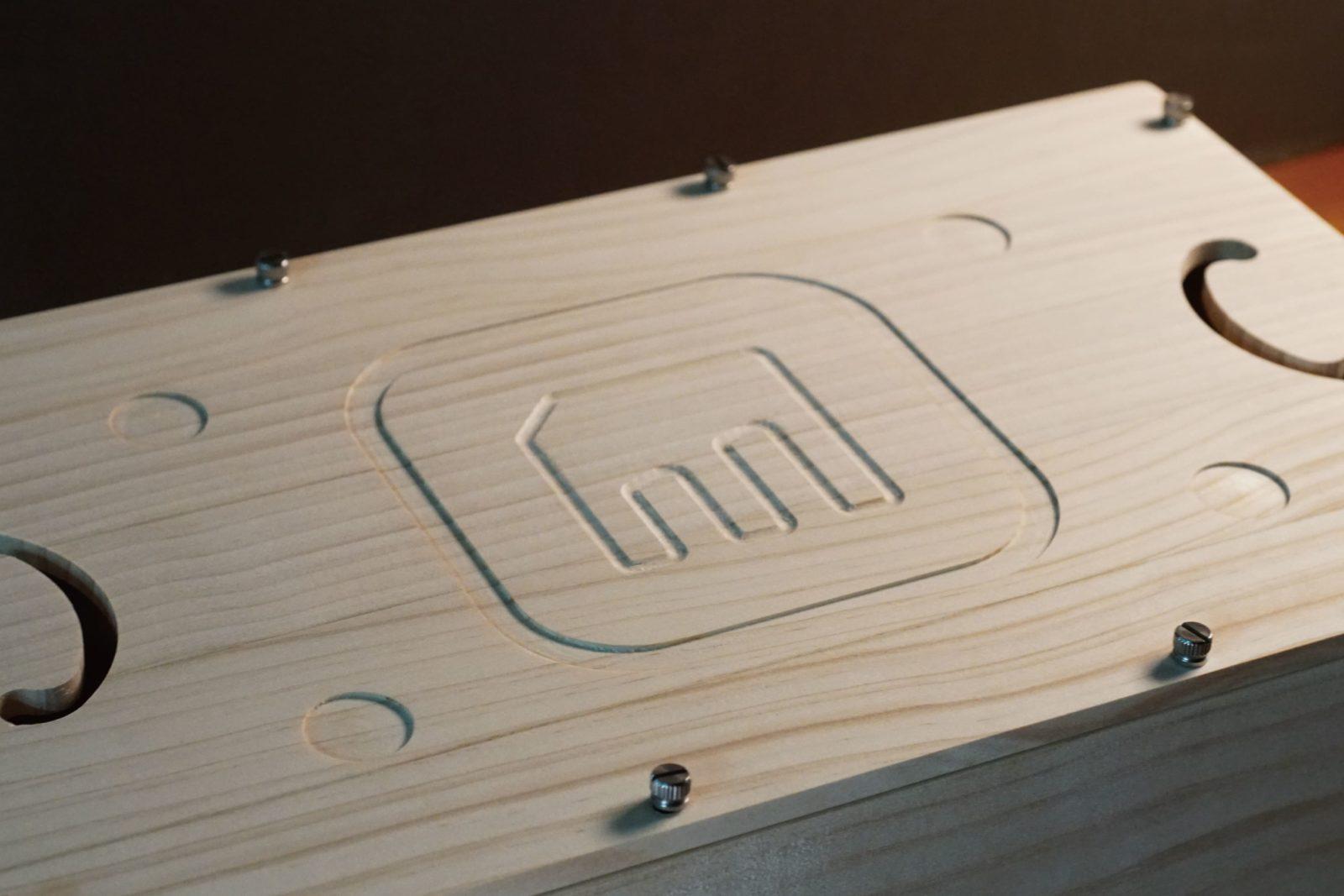
(7) Place the four feet of your N40 music box on the four small circles on the music box, plug in the power, and you will hear the default music box melody (a jingle) when the music box is turned on. You can press the knob on the front side to play the preset music box melody, or start pairing it with your Muro Box App to experience the thousands of melodies in our online music library.

There are only 2 feet with the anti-slip pad sheets attached, it is because we need to have the other two feet directly contact the surface of the N40 resonance box to enhance its sound transmission effect.
Attention: The anti-slip pads are soft and can be easily damaged if you slide the heavy N40 music box on the table instead of lifting it up when attempting to move it.

(8) Please note that the button on the backside of the N40 music box (as shown in the picture below) is the switch for the MIDI device, “not” the power button for the music box! When the music box is plugged in, it means the power is on. It is always in a connected state when plugged in, there is no “power off” state. If you really want to turn it off to save energy, please simply unplug the power.

When the Muro Box is plugged in, it means the power is on. The circled button is the switch for external MIDI devices, not for turning on the music box!
If you are not using the DIN-5 MIDI input, please keep this button unpressed.
Attention:
If you press the MIDI device button, insert a MIDI input cable into the USB-C MIDI input port, or connect a 5-pin MIDI input cable, the music box will assume that you do not need to control it via the app but only want to receive MIDI message from an external MIDI device. Therefore, even if the app has successfully connected and paired with the music box, you will not be able to control the music box’s performance using your phone at that time!
2. Offline Playlist
After you insert the power cable into the N40 music box’s “15V 3A” slot, you can hear the music box start to play a short default melody (do mi sol si do), which means your music box is ready to play music.
Next, push the knob on the front side of the Muro Box-N40, and it will start to play your customized melody or the default playlist (15 songs in our Muro Box-N40 Official Playlist). If you wish to adjust the sequence of these melodies, simply drag and place the melody in the offline playlist via our app after you completed the connection setting between the Muro Box-N40 music box and the Muro Box app on your phone.

How to Use the Knob:
Press once: Play/Pause
Turn right: Next song
Turn left: Previous song
3. APP Functions
Download our free app from the App Store or Google by searching “Muro Box”.
Pair the APP and the N20 Music Box for the first time:
- After you login to the Muro Box APP, click on the gear icon to go to the settings page.
- Accept to receive firmware update notification, click on the button “Muro Box Connection Setting”.
- Follow the app’s 4-step instructions to complete the WIFI connection setting. You can watch the following tutorials:
For iOS phone users: https://murobox.com/en/faq/app-tutorial-02c/
For Android phone users: https://murobox.com/en/faq/app-tutorial-02d/
Troubleshooting
Open our app, go to the settings page, click “Support” and then fill out the troubleshooting survey.
Our customer support staff will forward your report in one day to ask our engineering team to answer it during our office hours in Taiwan.
When you send the troubleshooting request via our app, it will record your phone’s version, app version, and product serial number automatically to help our engineer team debug.

4. How to search melodies in the app?
You can try various keywords to see if someone has already created the music box version of your favorite singer’s song, a movie theme song, a video game theme song, etc. You can even try keywords like Disney, and Ghibli Studio as the keywords to identify their famous melodies arranged by our global customers!

If the search results are not many, you can also try to explore more melodies from the world’s largest online music box community: Music Box Maniacs (MBM). Please view this tutorial:
If the above methods do not help you find a satisfactory music file, you may consider purchasing our customized arrangement service.
5. Compose Music via Muro Box App
All of the Muro Box products have the same app functions, including composing music directly on our app. Just a few clicks on the app, you can enter notes directly to complete your music creation and the Muro Box music box will become your exclusive pianist!

Essential Guide to Music Box Arrangement:
- File Format Limitation:
Muro Box can only read single-track MIDI files and does not support other formats. - Note Range Limitation:
N20 Range: C3 to A5 (white keys only, excluding black keys).
N40 Range: F2 to A6, excluding F#2, G#2, A#2, and C#3.
(Middle C = C3, 261.6 Hz). Before using arrangement software, ensure that the middle C in the software is set to C3 or C4 to avoid playback errors in the music box’s note range. - Playback Speed Limitation:
At a tempo of BPM = 120, the shortest continuous note unit is an eighth note. This means that at this speed, the fastest continuous single notes can play at 120 notes per minute.
Maximum Simultaneous Notes: 10 (up to 10 notes can be played simultaneously).
For recommended music box arrangement tools and external MIDI keyboards, click here to learn more. We also invite you to read the article “How to Bring Your Arrangement Creativity to Life with a Music Box” for more tips and techniques on arranging music for the Muro Box.
6.Connect with Other MIDI Device
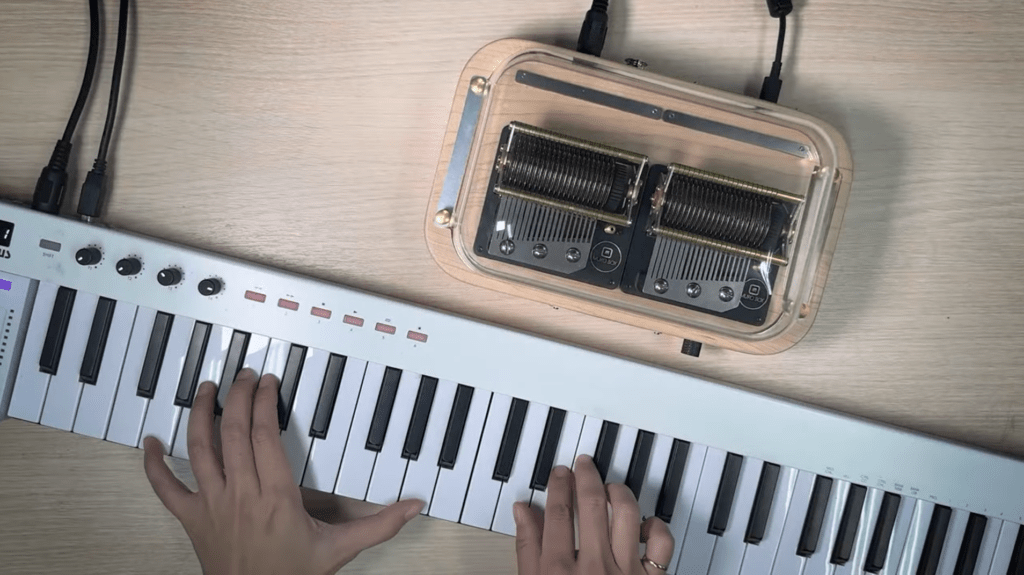
The following models have a MIDI input slot on the backside of the music box for you to connect it with a MIDI keyboard/ computer: N20 Standard, N40 Standard, and N40 Sublime. Please read the following tutorial to connect your MIDI device with the music box!
7. More Features Await You!
For a detailed introduction to Muro Box’s features, please refer to our FAQ’s first question: “How to Use Muro Box”.
Clicking it will provide detailed blog explanations for each feature setting.
【Welcome to Join Our Global User Community!】

This is an international group for discussing how to use Muro Box and its app to create wonderful melodies for you and your loved one!
This group is only available for customers who have already purchased Muro Box.
Please carefully answer the 3 questions when joining the group:
- Have you liked the Muro Box Global Fan page already? If not, please go give it a like!
- Have you purchased a Muro Box already? Yes/No
- Please indicate your customer Name and the Email you provided to Muro Box.
【What Will We Share in this Group?】
- Tutorial Videos and Handouts
- App-related announcements: problem-shooting, version updates, new features survey
- Melodies and Composers we recommend
- Melody Composing Requests and Contests