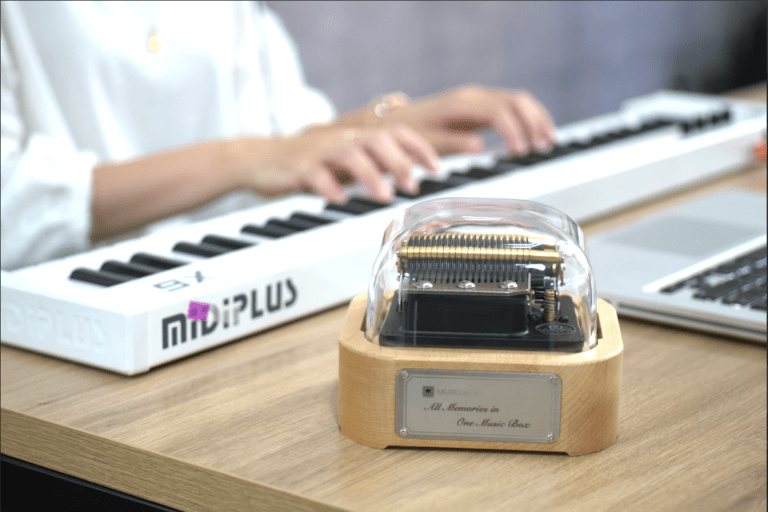
Recommended Music Box Arrangement Tools for Muro Box
Arranger: Hung-Yin Liu

Recommended Music Box Arrangement Tools for Muro Box
Muro Box Arranger: Hung-Yin Liu
Given the limitations of mobile screen size and our team's development resources, we have positioned the Muro Box App as a “smart remote control for the music box” and a “lightweight, portable arrangement tool.” If you need to create more complex and detailed professional arrangements, professional music software on a computer will be better suited to the task.
The following is a complete introduction to the Muro Box App and useful recommended tools. We hope this will accompany every creator in realizing their musical dreams with Muro Box.
As long as you create a MIDI file that conforms to Muro Box’s pitch range specifications, the music box can play it for you.
Table of Contents
Mobile Music Arrangement – Muro Box App
Among the excellent features of the free Muro Box app is “Create melody in the app,” which allows you to create an arrangement on your phone and then connect directly to the music box for playback.
Even when the music box is not connected, you can compose and play using the default music box sound. You can use spare moments in your daily routine to open the app and tap as you please, recording a melody whenever one comes to mind. You can refine an arrangement at your own pace, editing and revising as you listen, and then have Muro Box perform the finished piece.
In the words of our customer and accomplished arranger Yen-Ting Chen, who has created one hundred arrangements:
“I do not have to perform it myself. I can take my time refining an arrangement before publishing it, without being constrained by my own limited performance skills. At thirty-five, I finally found a stage on which I could make the most of my abilities. Muro Box was an immediate fit for me, and thus began my modest musical career in score writing and composition.”
If you are curious about how Yen-Ting creates his arrangements, we invite you to read his story:The Instrument I Was Meant For: Muro Box-N20—I Arranged Over a Hundred Songs with Its App.
Moreover, the intuitive interface that produces sound is also an ideal way for children to learn about pitch through play.

Get the Muro Box App
(1) How to download the app for free: On iPhone, go to the App Store; on Android, go to Google Play. Search for “Muro Box” to download our Muro Box App free of charge.
(2) Open the app. In the bottom toolbar, select the fourth icon from the left, “Compose.” On that page, tap the + sign in the upper-right corner and select “Create melody in the app.”
(3) Go to the song information page, enter the song information, set the rhythm and tempo (the tempo can still be adjusted and changed during editing), and choose whether to make the song public.
(4) For Melody Scale, select the setting that matches your Muro Box model.
- The N40 has 40 notes, with a range from F2 to C6, excluding F#2, G#2, A#2, and C#3.
- The N20 has 20 notes, covering the natural notes from C3 to A5, equivalent to the white keys on a piano (excluding the black keys).
* Middle C = C3 = 261.6 Hz
App Arrangement Interface
The ruler at the top of the screen is the “Beat Number Timeline.” The numbers shown above it indicate the beat number (for example, 1 denotes beat 1, and 2 denotes beat 2).
Each beat is subdivided into four intermediate cells, each representing a quarter of a beat (equivalent to a sixteenth note); each intermediate cell is further subdivided into four small cells, each representing one sixteenth of a beat (equivalent to a sixty-fourth note, providing a fine-grained scale).
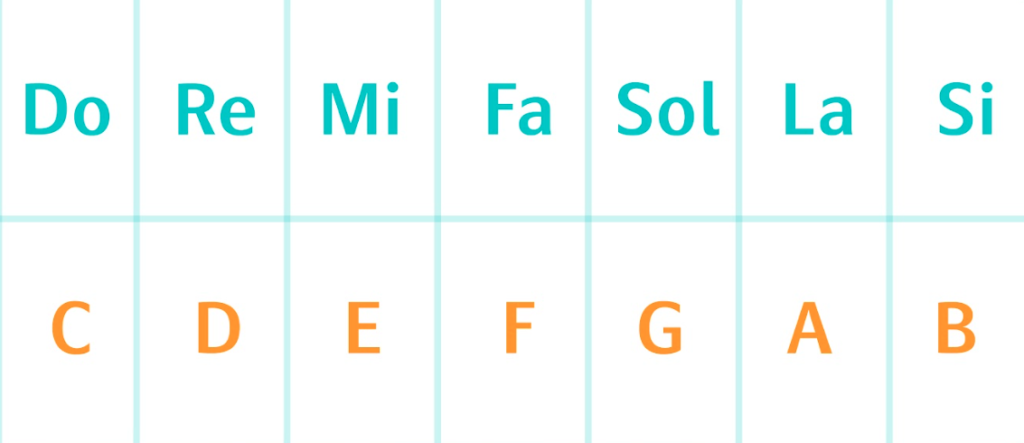
On the left side of the screen, there are English letters and numbers. The letters C, D, E, F, G, A, and B are the note names used to display the musical scale and correspond to Do, Re, Mi, Fa, Sol, La, and Si. From bottom to top, the numbers increase, indicating increasingly higher pitch.
In-Depth Tutorial: Arranging Music with the App
For a step-by-step guide to arranging music in the mobile app and a detailed introduction to its features, please read the full article:
Computer-Based Arrangement – Signal Online Arrangement Software
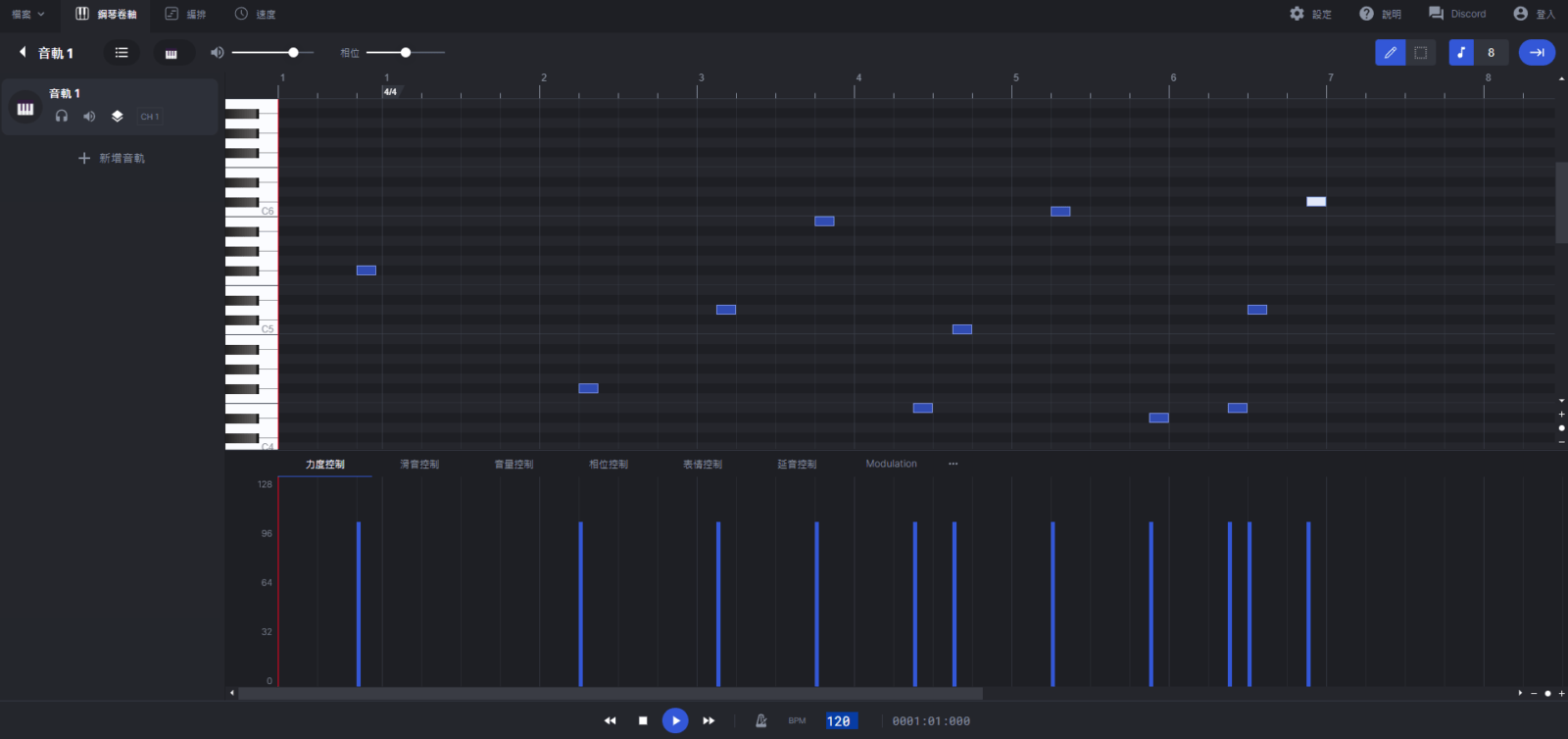
Thanks to feedback from several customers, we recommend the following free online arrangement software, Signal (https://signal.vercel.app/). You can click within the arrangement interface using your mouse, or connect a MIDI keyboard or instrument and record notes directly as you play, then export a MIDI file. Using the app's import function, you can import the MIDI file into your playlist and let the music box play your work.
Connecting Muro Box to the Signal software (video)
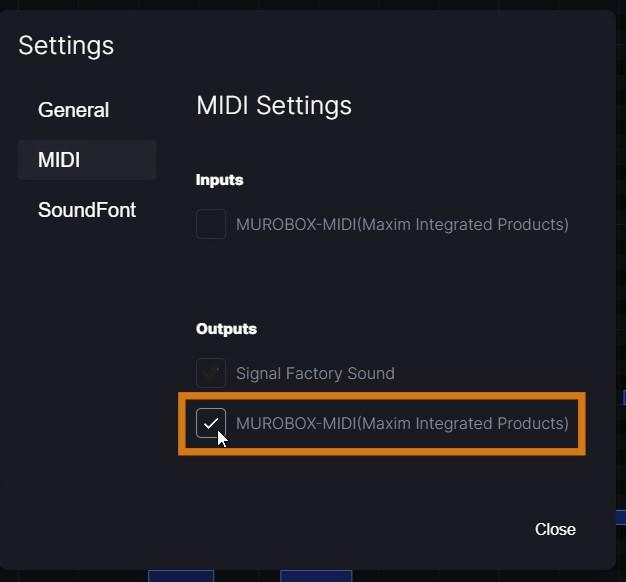
Steps for Connecting Signal to Muro Box
- Use the keyboard or mouse to enter notes.
- Click the gear icon at the upper right and set Muro Box as the Output device. (You can uncheck the original output device so that the original instrument's sound does not overlap with that of Muro Box when sound is produced.)
- Press Play, and Muro Box will begin playing the notes you entered.
Please note that this software uses a pitch naming system in which C4 is middle C. By contrast, the pitch naming system used by Muro Box treats C3 as middle C. Accordingly, if Muro Box’s range is mapped into this software, the playable notes are
- N40: F3–C7, excluding F#3, G#3, A#3, and C#4
- N20: C4–A6
*Middle C = C4
When arranging, please keep the above range in mind so that the audio file imported into the app does not sound too low.
💡 Why are there two octave-numbering systems for middle C (C3 or C4)?
Middle C on the piano (frequency 261.6 Hz; MIDI note number 60) is often referred to as C3 or C4 in everyday use. In the context of real instruments and traditional music theory, middle C usually refers to C4, because it is the fourth C key from the left on an 88-key piano.
In digital music, the official MIDI specification defines only note numbers (0–127) and does not mandate corresponding textual names. Early major hardware manufacturers differed in their conventions for defining the origin of note names (Note 0)—for example, Roland maps Note 60 to C4, while Yamaha maps it to C3—and this historical practice has carried over to today’s digital audio workstations (DAWs).
Therefore, the name displayed for middle C among different DAWs or MIDI controllers varies according to the manufacturer’s choice (for example, Logic Pro labels middle C as C3 by default, but users can freely switch between C3 and C4 in Preferences).
In summary, the most accurate objective criteria for determining true middle C are:
- the fourth C from the left on an 88-key piano
- the C with a frequency of 261.6 Hz
- the C with MIDI note number 60
To confirm whether the DAW or hardware device you are using labels middle C as C3 or C4, consult the manufacturer’s official website for specifications.
💡 The middle C used in the Muro Box App is C3.
The MIDI keyboard used in our testing
Many people who have purchased a Muro Box often ask us which external MIDI instrument we recommend. For our own testing, we use MIDIPLUS keyboards. Keyboards from other brands should also work as long as they are standard USB keyboards. However, we advise against buying overly complex models: the more complex a keyboard is, the more likely it is to require special drivers, which increases the risk that it will not be supported.
In addition, the number of keys on the keyboard must be considered. Because the N40 music box has 40 notes, a keyboard with fewer than 40 keys will require transposition when playing in order to cover the full range.