Music Box Applications You Haven’t Thought Of: Muro Box App Features Developed Based on Customer Requests

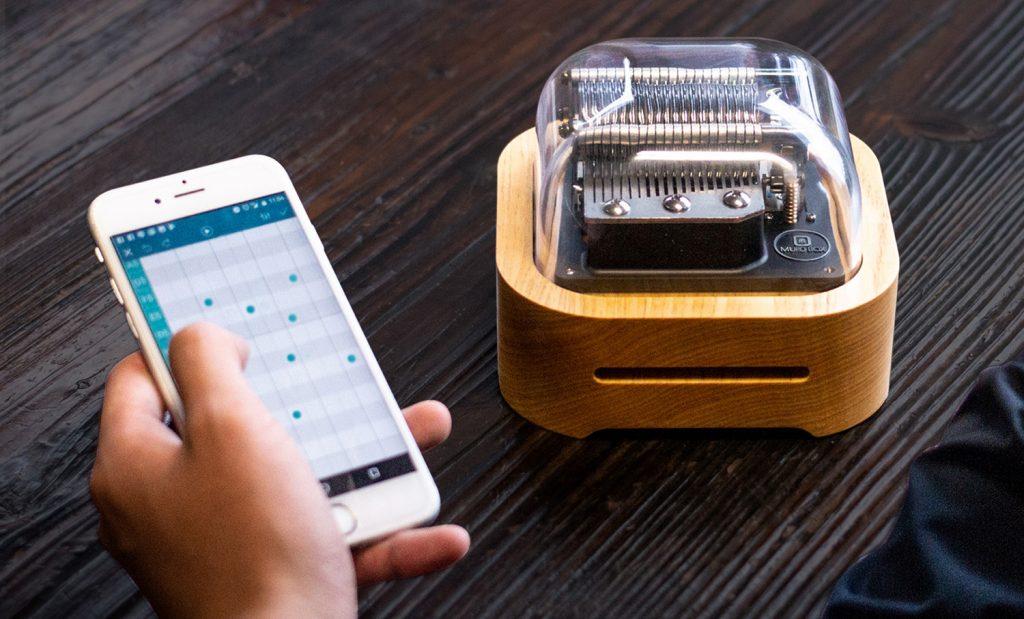
The Muro Box App is a free composition and music search app shared across the entire programmable music box product line. The music boxes shown in the photo are: N40 Sublime, N40 Standard, and N20 Standard.

Music Box Applications You Haven’t Thought Of: Muro Box App Features Developed Based on Customer Requests

Developing a music box is not just about designers sketching on paper or engineers adjusting metal parts with hand tools. In fact, the development process of Muro Box is highly computerized. Our Sanchong office in New Taipei City is where every Muro Box programmable music box comes to life.

Especially the software. Compared to the strong mechanical feel of an exposed music box movement, the effort we put into software remains largely unseen. Once we mastered the mechanical aspects of the music box, software gradually became the next critical challenge to overcome.

Here, we’ll review our software development efforts from 2025 to the present (January 2026), giving you a deeper understanding of the design behind modern music boxes. (We also welcome you to revisit the earliest stories of the Muro Box App development journey.)

app-controlled (programmable) music box - Muro Box

Alarm Playback Mode Adds “Shuffle Play”

Just when we thought using a music box as an alarm clock was already cool, our customers imagined even more.

“Listening to the same song repeatedly is so boring”—so we added a scheduled shuffle play mode.
“I want a special surprise”—so we added shuffle mode (pick one), which randomly selects a song from your playlist to play, giving you a lottery-like mood boost.

Instructional diagram for the dedicated Muro Box programmable music box App: how to enable “Shuffle Mode” for the Offline Playlist and Alarm Playlist.
Steps to enter this setting: Main Menu → Tap the gear icon to enter Main Settings → Music Box Settings → Shuffle Mode

Thanks to our Taiwanese customer, Liang Mingxin, who suggested “shuffle play” while listening daily to their favorite hymns/psalms offline. You can also find the songs he shared in the online app library by searching the uploader name “jl516689811” (N40 version).

Above is a preview of the church song titles and cover images publicly shared by customer Liang Mingxin in the Muro Box App cloud music library.

Alarm Playback Mode Adds “Daylight Saving Time”

But you might not realize that the biggest challenge in alarm mode isn’t choosing songs—it’s the inherent geographic “time differences” among users worldwide. Not to mention the infamous “Daylight Saving Time,” which is rare in many Asian countries.

Time-based challenges are far more complex than they seem. For example, a user in the U.S. sets the music box to play at 10 AM Taiwan time. Is that 10 AM Taiwan time, or 10 AM U.S. time?

Instructional diagram for the dedicated Muro Box programmable music box App: how to enable the “Daylight Saving Time” setting.
Steps to enter this setting: Main Menu → Tap the gear icon to enter Main Settings → Music Box Settings → Daylight Saving Time.

Do you love the ritualistic “hourly chime” of a grandfather clock?

We plan to introduce a “Grandfather Clock” mode in the future, letting you tell the time just by listening! (See the sample video below.)

Thanks to our Swiss customer who recently tested the N40 Sublime and suggested a feature to mimic church bells striking the hour. He said: “Like church bells, they chime at every hour and every quarter hour. Or like the ‘Uhu Clock,’ which chimes on the hour. I think this would be a great feature.”

Offline Playlist Settings

Setting music on your music box one song at a time is tedious, right?

We totally agree. Every time we bring various Muro Box app-controlled and programmable music box models to events for demos, we have to add and delete songs dozens of times to match the audience’s age and preferences—our fingers nearly broke.

So we added a playlist copy function, letting you replace the music in your music box all at once with a playlist you’ve organized in the App!

Instructional diagram for the dedicated Muro Box app-controlled and programmable music box App: how to select a specific playlist to replace all songs currently in the Offline Playlist at once.
Steps to enter this setting: Main Menu → Tap the second playlist icon → My Playlists → Select any playlist name → Tap the “…” icon next to the playlist name → Select “Replace offline playlist with all.”

Thanks to our Belgian customer Geert, who was the first to notice this quietly released feature and immediately shared via WhatsApp how excited he is to assign different playlists for various holidays throughout the year.

(Curious about the songs Geert comes up with almost daily? Check out his user story.)

Pairing

We must admit, connecting a music box to the internet is a double-edged sword. On one hand, it opens up countless new applications; on the other, network setup complexity can intimidate users. With so many phone brands and frequent updates, pairing logic may seem simple—but after a phone update, months of our work could be undone overnight.

The good news is that in 2025 we made a major update to pairing. Our music boxes now first connect to phones via more stable Bluetooth. After exchanging the Wi-Fi password and network name, they finally connect to your home network via Wi-Fi.

You might not notice the difference in the pairing screen, but it’s now much faster and smoother. Behind this logic were countless sleepless nights for our engineers.

<Watch iOS Device Connection Step-by-Step Tutorial>
<Watch Android Device Connection Step-by-Step Tutorial>

Instructional diagram for the dedicated Muro Box programmable music box App: how to start setting up the connection between the music box and the App.
Steps to enter this setting: Main Menu → Tap the gear icon → Muro Box Settings → Tap “Connection Setting.”

Gap Between Songs

As a music player, a music box actually has a lot of adjustable parameters. The most direct is song playback speed. This isn’t common in digital music—do people really want sped-up, pitch-altered versions?

However, traditional mechanical music boxes have an irregular cylinder rotation speed, which unexpectedly became a unique feature. Our first goal was to let users adjust the “gap” between two songs, so those who like a slower pace can enjoy a pause between songs.

The music box itself already supports adjusting the playback speed of an entire song, but the user-facing app interface is still in development, so it’s not yet available for general users. Stay tuned for future updates.

Motor Speed

To support fast-paced music that traditional music boxes cannot handle, the Muro Box’s internal cylinder runs at high speed. Therefore, we introduced motor speed control.

If users mostly play slow songs, they can slow down the cylinder rotation, visually resembling a traditional music box’s leisurely rotation and reducing inevitable vibration noise.

If users want heavy metal or rock, they can speed up the motor to enjoy “extreme” fun.

Instructional diagram for the dedicated Muro Box app-controlled and programmable music box App: how to start setting the music box’s “Motor Speed.”
Steps to enter this setting: Main Menu → Tap the gear icon to enter Main Settings → Music Box Setting → Motor Speed.

Thanks to our U.S. customer Alex Bahoora, who owns both N20 + N40 models, for this suggestion and for patiently testing each firmware update to see if motor speed control improved the real playback experience.

New Release Notifications and Sharing Songs

To notify fans immediately when new songs from creators are released, we enabled mobile notifications, letting followers be the first to listen. In addition, when fans “like” a song, creators receive instant notifications, feeling the gratitude from everyone. We hope the App can be a platform for interaction, bringing music box enthusiasts closer together.

The image previews show playlist covers and names of music boxes designed by creators personally liked and followed by our Muro Box team co-founder, Cai Xiaocheng.
The customers shown in the image previews are all creators personally liked and followed by our team co-founder, Cai Xiaocheng. If you are not familiar with which users arrange songs thoughtfully and are worth collecting, you can enter the creator’s name or playlist name in the Muro Box App, then click the creator’s avatar to view their profile and explore more of their publicly shared music.
The images above use the creator Daniel McConnell, who has contributed many classical piano pieces, as an example. If you search for his name and click on his avatar, you can see how many songs he has published and how many have been favorited by other users. You can also tap “Follow” to start following this creator and receive push notifications via the Muro Box App whenever he releases new music.
The images above demonstrate how to use the Muro Box App to set which situations are allowed to send you notifications. Turn on notifications for events you want to be informed about, and turn off those you don’t want to be notified of.

You can also share your own creations via a URL. Even if someone hasn’t installed the App, they can listen on our website and even control a live music box online. Music knows no boundaries—create and share freely.

The images above demonstrate how to use the Muro Box App to set where to share links for songs you have uploaded. Please note: only songs you have uploaded have the permission to generate a shareable link.

Future Features

Reading this far, you might feel your imagination running wild—is this really a music box we’re discussing? Yes, this is what a modern music box should be: rooted in traditional mechanical music boxes, yet full of endless possibilities.

If you have any unusual ideas you want to see implemented in a music box, please tell us. Together, we can make music boxes, something everyone treasures once again.