Help Center

Pre-purchase FAQs

a

Traditional Music Box: Dedicated to the singular, classic listening ritual

The traditional music box is the epitome of pure mechanical craftsmanship, focusing on performing an excerpt of a single specific piece.

Muro Box: Capable of playing complete songs and supporting an unlimited number of tracks

  • Muro Box fully liberates the constraints on music while retaining authentic mechanical sound production. It can not only play an entire song in full but also supports an unlimited number of tracks. Its plug-in design eliminates the need for manual winding, allowing the music box to play automatically and continuously.

  • By connecting to the App via Wi‑Fi, users can create customized cloud playlists or set offline song lists that can be intuitively switched using the knob.

  • Combined with remote control and scheduled playback, the music box can serve as a lifestyle assistant, automatically creating surprise and companionship on designated anniversaries or during everyday moments.
  • N20: The 20-note music box features a diatonic scale, and it does not include semitones (the black keys on a piano). Most pop songs can be transposed to be performed with these 20 notes. It uses a single 20-note comb, producing a crisp, bright sound.

  • N40: The 40-note scale expands the range and includes semitones (chromatic scale), offering significantly more performance possibilities. It is ideal for songs with larger arrangements or prominent semitones (such as film scores, minor-key songs, jazz, and classical music).

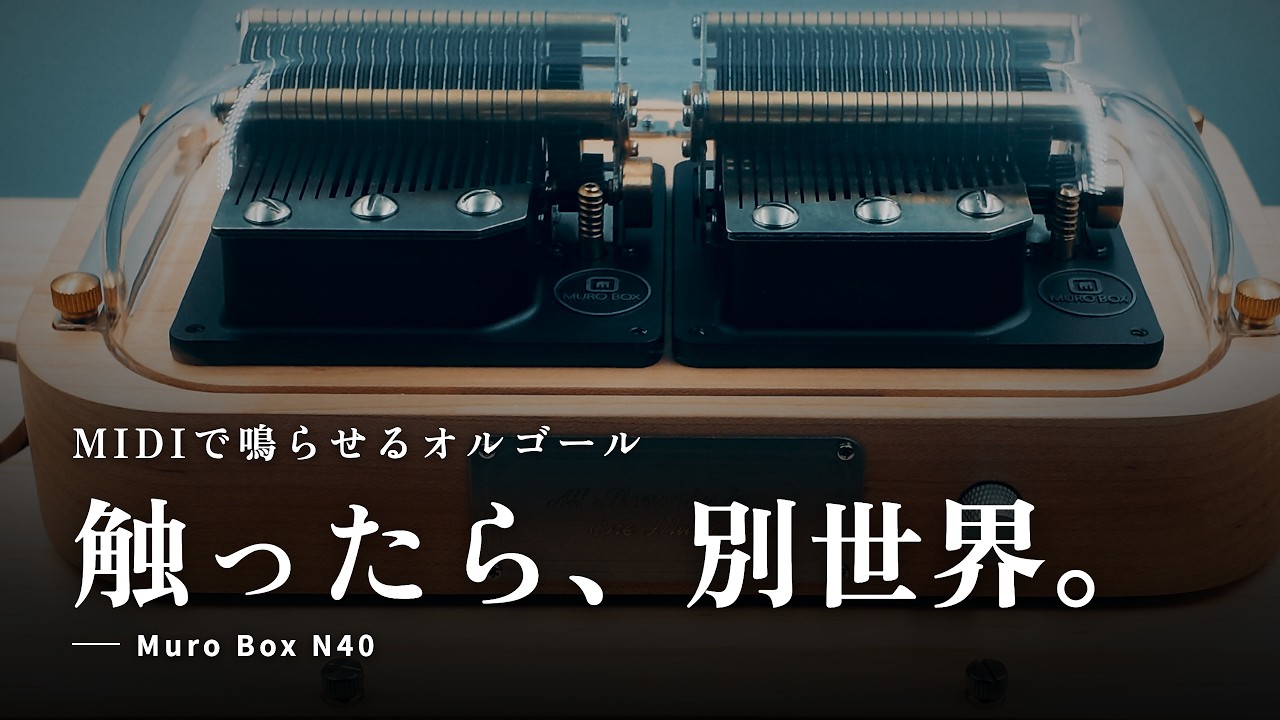
    • The N40 Standard uses two combs (40 notes total), with the same crisp, bright tone as the N20.

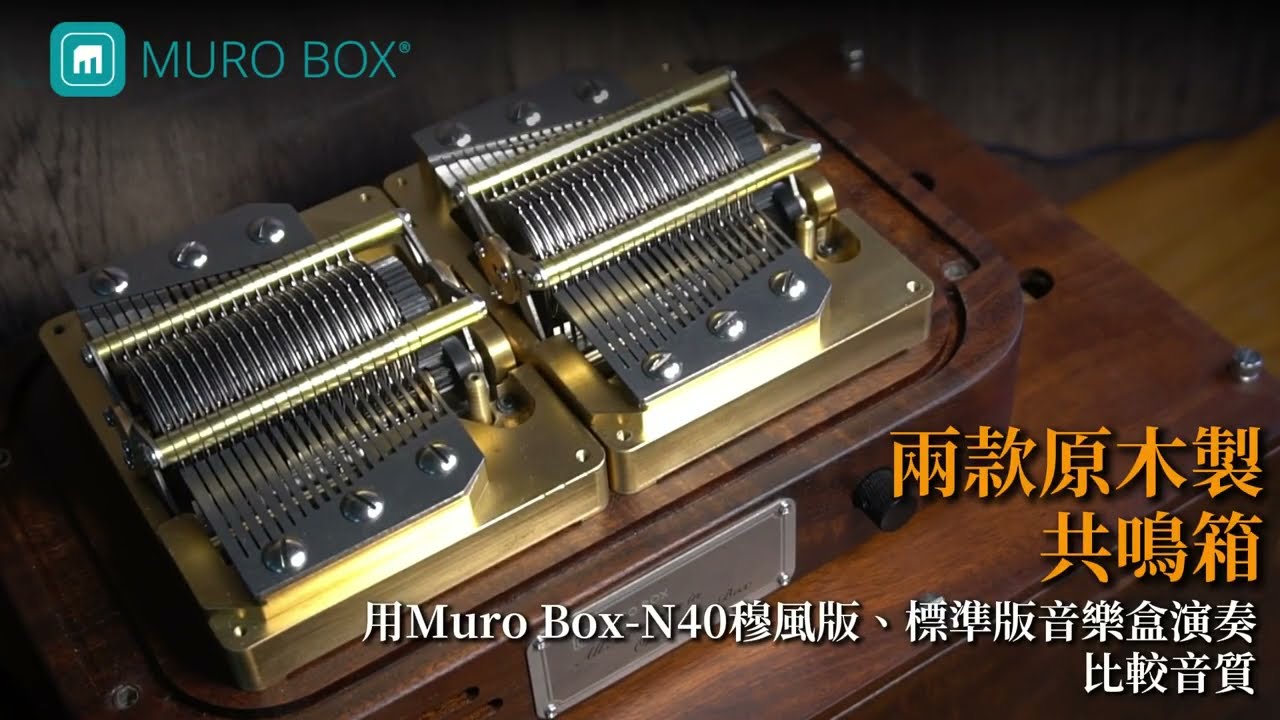
    • The N40 Sublime (SLM) features four combs working in harmony. Each note strikes two comb teeth tuned 14 cents apart (80 teeth in total), creating a dense, rich resonance that replicates the luxurious sound of antique music boxes.

For more details on sound samples, materials, and resonance box differences, please refer to this article: Which Muro Box Is Suitable for Me?

N40 Standard – For a Pure and Clean Tone:
It features two 20-note combs for a total of 40 notes, paired with a zinc alloy base and North American hardwood body. The sound is clean, direct, and crisp, ideal for those who prefer transparent, bright timbre with faithful reproduction of the original sound.

N40 Sublime – For Rich and Lush Resonance:
It uses a brass base and heat-treated Acacia wood to produce a warmer tone. The key difference lies in the addition of a set of four combs detuned by 14 cents. During play, this creates a unique layered trembling resonance and extended sustain, resulting in a warm, deep, and emotionally complex timbre that recreates the opulent feel of luxury music boxes.

⮕ To learn more about detailed sound samples and the differences in materials and resonance chambers, please refer to this article: Which Muro Box is Right for Me?

Choosing a Muro Box depends primarily on your budget, arrangement needs, and sound quality preferences:

  • N20 Series (Ideal for Beginners or Gifting): Features 20 full notes with a crisp timbre. Suitable for those on a budget, for gifting, or for playing general pop music.

  • N40 Standard (For Music Creators):Covers nearly 4 octaves (including semitones/black keys) and supports MIDI keyboard input. Best for creators who enjoy arranging and want to faithfully reproduce complex classical pieces or pop songs.

  • N40 Sublime (Flagship Collector’s Edition): Utilizes four note combs (80 teeth) playing in coordination, paired with a brass base and a Taiwan acacia wood case. Delivers a rich resonance and sustain, ideal for collectors seeking the ultimate sound quality.

  • Common Features: All models support unlimited song playback via the app, offline playlists, and optional laser engraving and custom arrangement services.

For detailed specification comparisons and audio demos, please visit the webpage:
⮕ Muro Box Official Website: Which Music Box Is Right for Me?

You can find or obtain the song you want on Muro Box through the following methods:

  1. Online Repertoire Search: Enter the song name and artist directly in the Muro Box app or on the official website to freely search among thousands of tracks shared by players and arrangers worldwide.

  2. Import from the Music Box Community: Search on the world’s largest music box score website, MBM (Music Box Maniacs). Once found, you can import it directly into Muro Box for playback via the app at no cost.

  3. CustomArrangement Service: If the song is not available on the platforms above, you can provide a YouTube link or audio file and purchase the official custom arrangement service, where professional arrangers will tailor the piece for you.

⮕ For a more detailed tutorial on exploring the repertoire library and the custom arrangement process, please refer to: Muro Box Custom Music Box Gift Guide.

Click the video below to hear the same song performed on all three Muro Box models. Compare their tone, resonance, sustain, and overall playing characteristics to find the sound you like best.

0:00 N40 Sublime | 1:07 N40 Standard | 2:15 N20 Standard

Muro Box product specifications are as follows:

Power Adapter
Output Voltage: 15V
Rated Current: 3A
Rated Power: 45W
Input Voltage: 90~264VAC
Frequency Range: 47~63Hz
AC Current (Typ.): 1A/115VAC ; 0.5A/230VAC

Muro Box-N20 Standard
Operating Voltage: 15V
Operating Current: 2.5A
Product Dimensions (mm): 135(L) x 135(W) x 105(H)
Weight: 1.0 kg

Muro Box-N40 Standard
Operating Voltage: 15V
Operating Current: 3A
Product Dimensions (mm): 250(L) x 160(W) x 95(H)
Weight: 2.3 kg

Muro Box-N40 Sublime
Operating Voltage: 15V
Operating Current: 3A
Product Dimensions (mm): 250(L) x 160(W) x 95(H)
Weight: 4 kg

No need to worry. Even without connecting to the app, the music box can play the default offline playlist. We have pre-loaded the official playlist at the time of shipping (30 songs for the N20 model; 15 songs for the N40 model). Once the music box is plugged in, simply press the knob to start listening with one easy step.

Additionally, if you require a custom arrangement, we will upload the song to the music box before shipping. After receiving the product, you can directly play your specified personalized song by plugging it in and pressing the knob, without needing the app at all.

We currently have demo locations in Taiwan, Hong Kong, Japan, and South Korea where you can try listening and playing with the music box. Please fill out the reservation form in advance or call to book a trial session in case the products are sold out.

Taiwan Office Address:
1F,No. 16, Renci Street, Sanchong District, New Taipei City 241, Taiwan
Business Hours: Monday – Friday, 9:00 AM – 6:00 PM (GMT+8)

Email Us: support@tevofy.com
Whatsapp:+886-905-321-439
Facebook: Muro Box Global

  1. Search for Your Desired Song
    Go to the [Muro Box Online Music Library] and search directly by song title or browse the “Popular Songs” section. A mark of 20 indicates the 20-note specification, while a mark of 40 indicates the 40-note specification.

  2. Choose a Preview Mode
    Click on a song to enter its playback page, where you can freely switch between two modes:
    – Web Mode (Preview): The system digitally plays the melody using the N20 music box’s tone samples, allowing you to quickly verify the melody and arrangement style.
    – Live Acoustic Demo Mode: Remotely connect to a physical music box in our Taipei office and hear the authentic sound of the note comb strike in real time!

  3. Select a Model and Listen Immediately
    In Live Demo Mode, you can choose between the N20, N40 Standard, or N40 SLM (Sublime) to experience the distinct sound and resonance of each model.

Due to the complexity of battery transportation safety regulations, we decided from the very beginning of the design process not to include a battery, allowing the music box to be shipped to as many countries as possible.

If you need to use the music box on the go, the N20 Standard, N40 Standard, and N40 Sublime all support USB-C power banks, allowing you to easily take the music box anywhere you go.

Compatible power bank specifications: Minimum of 45W USB-C power supply. Please use a model that supports 15V voltage and at least 3A current (45W 15V/3A).

For example, the following power bank is one of the models we used in internal testing: 

https://www.mi.com/global/product/mi-50w-power-bank-20000/

The Muro Box music box plays MIDI files, and the hardware itself has flash memory that can store up to 1,024 songs.

The music box can directly play the last synced offline playlist by simply pressing the knob.

However, we recommend that you create additional playlists to categorize your collection, such as by genre or tempo: sleep, pop, classical, 80s hits, etc. This way, you can play different playlists according to the situation, enhancing your listening experience.

To adjust the songs in the offline playlist. you need to connect the music box to the app, where you can add or remove songs from the offline playlist or drag them to change their orders in the offline playlist.

Both the N20 Standard, N40 Standard, and N40 Sublime use USB-PD and can be powered by a portable power bank, allowing you to take your Muro Box wherever you go.
(Note: The N20 Lite uses a traditional DC power supply and does not support this external power bank functionality.)

Compatible power bank specifications: Minimum of 45W USB-C power supply. Please use a model rated for 15V voltage and at least 3A current (45W 15V/3A).

For example, the following power bank model is one we have used in our internal testing: https://www.mi.com/tw/20000mAh-mi-power-bank-3-pro/specs/

Muro Box uses a purely physical mechanical structure to strike the note comb, allowing the metal and wooden box to resonate naturally, producing a crisp tone. Since the sound is generated physically rather than through an electronic speaker, the volume cannot be directly controlled via the APP or a knob. However, you can enjoy the pleasure of fine-tuning the sound by changing the “conductive medium”:

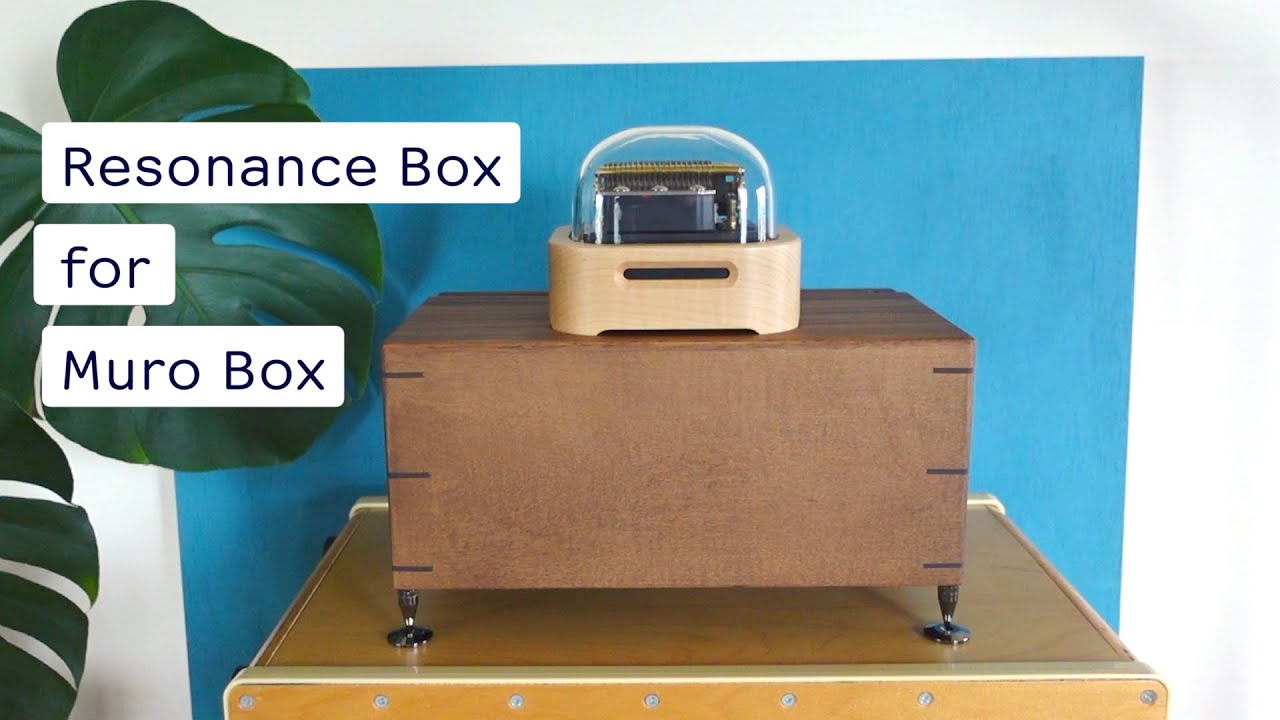
  • Increase Volume (Enhance Resonance): Place the music box on a large wooden table, a hollow wooden cabinet, or use the official dedicated resonance box. The large wooden cavity amplifies the volume through physical resonance.

  • Decrease Volume (Absorb Vibration): Place a towel, sound-absorbing pad, or similar soft material under the music box. These soft materials absorb part of the physical vibration, reducing sound transmission to the table surface.

Yes. Absolutely.

From the very beginning, Muro Box was designed with the belief that a music box should be able to last for generations. To avoid the common risk of vendor lock-in associated with smart devices, Muro Box is built on open hardware architecture and standard communication protocols.

Even in the most extreme scenario—no official server, no Internet connection, and no App—your Muro Box remains a fully functional smart music box. You can continue using it and changing its songs through the following two completely cloud-independent methods:

  1. Offline Playback (Built-in Memory & USB Drive Support)

    Muro Box features built-in non-volatile memory. Any offline playlists synchronized from the App are stored directly inside the device. Even without an Internet connection or the App, simply connect the power and press the control knob to play the locally stored playlist.

    In addition, Muro Box supports direct playback from a USB flash drive. We designed this feature for users who prefer a simple, familiar way to update their offline songs without using the App.

    Simply:

    • Prepare a USB flash drive formatted as FAT32.

    • Copy your Standard MIDI files (.mid) into the root directory of the USB drive.

    • Insert the USB drive into the USB-C port on the back of the music box. Muro Box will automatically import the files into its offline playlist.

      This means that even without the App, you can freely update the songs stored in your music box for its entire lifetime.

  2. Standard MIDI Interface (Lifetime Hardware Compatibility)

    At its core, Muro Box is a MIDI playback device built around a real mechanical comb. It supports the industry-standard MIDI protocol via USB-C or Bluetooth BLE, allowing it to operate independently of our App or cloud-based music library.

    • Connect to a computer or mobile device

      You can use virtually any Digital Audio Workstation (DAW), including GarageBand, Logic Pro, Cubase, or Ableton Live, as well as third-party or open-source MIDI playback software, to send MIDI data directly to Muro Box for real-time performance.

    • Connect to external MIDI instruments

      You can also connect Muro Box directly to MIDI keyboards, digital pianos, or other MIDI-compatible hardware. Whatever you play on the controller will be performed instantly by the music box.

Even if the official App is no longer maintained in the future, engineers and makers around the world can continue controlling Muro Box using existing technical documentation with tools such as Python, Raspberry Pi, or Arduino, or even develop their own third-party control software. The product’s lifespan is not limited to our software—it can continue evolving with the community.


  • We fully understand concerns about the longevity and long-term reliability of smart devices. That’s why Muro Box is designed with a decentralized architecture. The cloud service and App are provided for convenience—not as a requirement. When you purchase a Muro Box, you own a fully programmable mechanical musical instrument that remains under your control.

Gift & Customization Guide

a

You can find or obtain the song you want on Muro Box through the following methods:

  1. Online Repertoire Search: Enter the song name and artist directly in the Muro Box app or on the official website to freely search among thousands of tracks shared by players and arrangers worldwide.

  2. Import from the Music Box Community: Search on the world’s largest music box score website, MBM (Music Box Maniacs). Once found, you can import it directly into Muro Box for playback via the app at no cost.

  3. CustomArrangement Service: If the song is not available on the platforms above, you can provide a YouTube link or audio file and purchase the official custom arrangement service, where professional arrangers will tailor the piece for you.

⮕ For a more detailed tutorial on exploring the repertoire library and the custom arrangement process, please refer to: Muro Box Custom Music Box Gift Guide.

If you have purchased a customized arrangement along with your order, we will send you a form after receiving your order. Please fill in the song details, including song information, reference links, the specific two-minute segment you would like customized, and any playlist or song images, etc.

▸ Customized Arrangement Form

  • Full-Length Arrangement: If you require a full-length arrangement, our arranger will evaluate the additional cost and confirm the fee with you via email separately.

  • After each arrangement is completed, the arranger will provide an MP3 audio file simulating the music box timbre for your preview and approval. You will have two opportunities to request minor adjustments free of charge before final approval.

  • Once the arrangement is approved, our engineer will upload and bind the final audio file and customized image to the music box, allowing you or the recipient to simply power on the music box and press the knob to play the specified song directly.

If you have purchased a customized laser engraving service along with your order, we will send you a dedicated form after receiving your order. The form will include detailed engraving dimensions, recommended fonts, sample images, and examples for your reference.

▸ N40 Metal Nameplate Laser Engraving Form

▸ N20 Metal Nameplate Laser Engraving Form

After we receive the text or image files you submit, our designer will first create a “laser engraving preview” for your approval. The engraving process will begin only after you confirm your satisfaction.

We offer a service to upload a custom playlist to your music box before shipment. Simply browse our free App music library, select 1 to 10 songs, and arrange them in your preferred playback order. Your music box will be pre-configured to play this playlist when it arrives.

If you purchase this service, we will upload your selected playlist to the music box before shipping. When the recipient receives the music box, they can simply plug it in and press the button to start playing your custom playlist—no additional setup required.

▸ Upload Custom Playlist Form

Note:

  • This service is available once per music box. You may select up to 10 songs from the App music library and arrange them in any order.

  • If this service is not purchased, the music box will still come with a default playlist of official songs (N20: 30 songs / N40: 15 songs).
  1. After receiving your order, we will contact you via email to fill out the song request form.
  2. Initial evaluation: The music arranger will assess whether the song is suitable for performance on the music box. If it is not suitable, we will suggest you choose another song before production begins.
  3. Once we receive the completed song request form, we will forward it to the arranger to schedule the arrangement. The arranger will strive to preserve the melody and rhythm of the original song as much as possible while leveraging the music box’s strengths, using techniques such as transposition and adapted accompaniment to condense the essence of the song within the music box’s range.
  4. After the arranger finishes the arrangement, we will email you an audio file for review and approval, with the opportunity for up to two rounds of minor adjustments. If more than two revisions are needed, or if substantial changes are required, we will discuss additional revision fees with you based on the situation.
  5. Once you approve the final version, we will upload the song to your undelivered Muro Box and have the arranger test it to confirm the upload is correct. When you receive your music box, simply plug it in and press the knob, and it will start playing your chosen song! 
  6. We will also provide the MIDI file of the song for your future use, allowing you to modify the arrangement or use it on other devices.

To ensure the sentiments you wish to convey remain with the music box for years to come, the customized arrangement or song list you ordered will be directly bound by our engineers as a “read-only dedicated playlist” on the device, preventing the recipient from accidentally deleting your heartfelt message.

If the recipient later wishes to add or modify tracks, they can simply use the “Create Your Own Online Playlist” feature within the app, with no limits on the number or length of songs. This not only preserves your original intention in its entirety but also allows the recipient to freely expand their personal music collection.

Find & Preview Songs

a

You can find or obtain the song you want on Muro Box through the following methods:

  1. Online Repertoire Search: Enter the song name and artist directly in the Muro Box app or on the official website to freely search among thousands of tracks shared by players and arrangers worldwide.

  2. Import from the Music Box Community: Search on the world’s largest music box score website, MBM (Music Box Maniacs). Once found, you can import it directly into Muro Box for playback via the app at no cost.

  3. CustomArrangement Service: If the song is not available on the platforms above, you can provide a YouTube link or audio file and purchase the official custom arrangement service, where professional arrangers will tailor the piece for you.

⮕ For a more detailed tutorial on exploring the repertoire library and the custom arrangement process, please refer to: Muro Box Custom Music Box Gift Guide.

Our music library is continuously updated with new songs by talented arrangers who frequently upload and share their work with the community. Furthermore, we have completed integration with Musicboxmaniacs.com (MBM), the largest music box community, expanding our library to nearly 50,000 songs. You can freely browse, search, and add songs to your playlists from this vast collection. Additionally, we offer official songs for your default listening (30 songs for N20; 15 songs for N40).

Click the video below to hear the same song performed on all three Muro Box models. Compare their tone, resonance, sustain, and overall playing characteristics to find the sound you like best.

0:00 N40 Sublime | 1:07 N40 Standard | 2:15 N20 Standard

Click the button below to download the App, or search for “Muro Box App” on the App Store or Google Play. After installation, create an account and follow the on-screen instructions to complete your music box connection setup. Once connected, you’re ready to start using Muro Box.


google-play-badge_en


Download_on_the_App_Store_Badge_US

  1. Open the app and tap the “cloud note” iconat the bottom left to enter the “Music Library.” You can browse popular songs, newly added songs, or explore playlists categorized by themes such as classical, pop, and anime. You can also view the latest MBM tracks, which are synced with the cloud every hour.|

  2. Tap the “magnifying glass” search icon at the top right of the screen, then directly enter the song title, artist, or creator name to quickly find the desired track in the cloud library.

  3. Next to a song, a “20” marker indicates the 20-note musical scale and model, while a “40” marker indicates the 40-note scale and model.

In the online music library on the official website or within the app, each song clearly indicates its note range (e.g., 15, 20, 30, or 40 notes). If you have an existing song and want to determine which series is suitable, please refer to the following:

  • N20 Series: Suitable for general pop songs that do not require accidentals (i.e., the white keys on a piano).

  • N40 Series: If the song includes chromatic notes (i.e., the black keys on a piano)—for example, songs in minor keys, certain classical pieces, or film scores—then the N40, which spans nearly four octaves, is required.

  • You can directly fill out the form to contact us. Our professional arrangers will evaluate your song and reply with a recommended model.

Arrangement Resources & MIDI Guide

a
  1. File Format and Track Length Restrictions
    • File Format: Only single-track MIDI files are supported; other music formats are not supported.
    • Track Length: When playing via the app, each song is limited to a maximum of 30 minutes (to prevent insufficient storage space on the mobile device). No length restriction applies when playing directly from a computer DAW.
    • Storage Method: During live performance, audio files can be stored in the music box’s internal memory or read via a USB flash drive (for easy on-the-fly adjustments and changes before performances).


  2. Musical Range Restrictions
    • N20 Range: Full notes from C3 to A5, equivalent to the white keys of a piano (excluding semitones/black keys).
    • N40 Range: F2 to C6, excluding F#2, G#2, A#2, and C#3.
      (Middle C = C3 = 261.6 Hz).


  3. Maximum Polyphony
    Refers to the maximum number of notes that can be struck simultaneously:
    • N20 Model: Maximum polyphony of 7 notes.
    • N40 Model: Maximum polyphony of 10 notes.


  4. Playback Speed Limits
    • For Different Pitches: If the melody consists of notes that leap (not repeated same pitch), Muro Box’s playback speed is virtually unlimited. It only takes 0.001 second to process different pitches. Even at an extremely fast tempo of ♩= 375 BPM with 1/64th notes (the smallest unit in the app), Muro Box can still play. Dense chromatic runs like those in “Flight of the Bumblebee” need not worry about missed notes.
    • Repeated Note Limit (Same Pitch): Due to the mechanical return time of the note comb, a single pitch cannot be struck more than five times per second, i.e., a maximum of 300 strikes per minute. When a song’s tempo ♩ ≥ 75 BPM and consecutive sixteenth notes (same pitch) are played, note dropouts may occur. In such cases, it is recommended to delete one of the repeated notes.


  5. Motor Speed Selection
    In the app, tap the gear icon at the bottom right, go to “Settings” > “Music Box Settings” to adjust the motor speed percentage:
    • High Speed: Smoother playback, less timing drift, but louder motor noise.
    • Low Speed: Quieter motor noise, but rhythm stability is more susceptible to melodic variations.


  6. Latency
    • Fixed Latency (~100ms): When playing from a computer DAW, due to the physical structure of the music box, there is a fixed delay of approximately 0.1 seconds from receiving a MIDI signal to actual sound production (equivalent to one sixteenth note at 120 BPM). If playing together with other instruments, it is recommended to send the MIDI signal 100ms earlier (pre-delay) in the sequencing software to align the beat.
    • Motor and clutch mechanics can cause slight torque fluctuations during playback, resulting in a random backward shift of up to 20ms in note timing (similar to a swing feel).
    • Startup Latency: When starting from a stop, the motor requires “warm-up time” to spin up from zero, so sound does not begin immediately. (In MIDI Controller mode, as the motor remains continuously spinning in standby, this latency does not occur.)


  7. Volume and Live Sound Reinforcement Recommendations
    Muro Box’s acoustic output level is comparable to a traditional paper-roll music box, not a large grandfather clock-style music box. If performing together with other instruments or in public settings, it is advisable to use an external microphone to capture the sound and amplify it through speakers to ensure the music box is not masked by other instruments.

The N40’s range is downward compatible with the 40, 30, 20, and 15 notes music boxes, including the Muro Box-N20. So, any compositions created for the N20, whether by you or other customers, can be directly played on the N40.

For a complete illustrated guide, please refer to the detailed tutorial on APP composition and settings.

  1. Create a New Composition: On the APP home page, tap the pen and staff icon in the bottom menu to enter “Compose.” Then tap the “+” icon in the upper right corner and select “Freestyle Composition.”


  2. Song Information Settings:In the composition settings page, you can configure the song photo, track name, description, style, rhythm, tempo, visibility (public/private), and whether comments are allowed. When selecting the range, ensure it corresponds to your Muro Box model (e.g., 20-note or 40-note) so that the notes you compose fall within the playable range of the music box.


  3. Edit Notes:Enter the piano roll composition interface. You can tap directly on the grid squares to add or delete notes (tap again to delete). Press and hold a note to adjust its position.


  4. Save: After completing the note arrangement, tap the settings icon in the upper right corner. You can freely modify the track name, tempo (BPM), and sharing permissions. Finally, press “Save” to finalize your custom composition.

Since the music box has physical range limitations, MIDI files downloaded from the internet often require fine-tuning. If you have basic sheet music reading skills, you can try editing them yourself!

Please read the [Complete Guide to Adjusting MIDI Files for the Muro Box Music Box]. This article demonstrates how to edit MIDI files using the free MuseScore software to adjust pitch range and rhythm, so the result can be played on the Muro Box music box.

  • A MIDI keyboard controller looks similar to an electronic keyboard but does not produce sound on its own. It must be connected to a Muro Box or another sound source device. Any controller that supports MIDI functionality is generally compatible with the Muro Box.

  • Choose based on the number of keys:
    • 32 keys: Suitable for entering melodies and portability. Covers nearly the entire N20 range (missing only the highest note). If a note goes out of range during playing, use the octave shift buttons to adjust the range.

    • 49 keys: Fully covers both the N20 and N40 range. If you intend to play with both hands simultaneously, a 49-key or larger controller is recommended.

    • 61 keys: Commonly used in arrangement work. If you also create music with software like Logic Pro or Cubase, consider this size.

  • This is the MIDI keyboard (61 keys) we use in our office for testing music boxes. Reference link:https://24h.pchome.com.tw/prod/DMAFCT-A9008EH6K
  1. Keep the microphone at a distance (avoid contact recording): Placing the microphone directly against the wooden casing amplifies motor noise. It is recommended to use an external microphone and maintain an appropriate distance to fully capture the room’s natural reverberation.
    For reference, please see the official sound quality comparison video:
    https://www.youtube.com/watch?v=y50cW11zRPY

  2. Lightweight equipment and simple post-processing:

    Lavalier microphone: Position a small microphone (e.g., Boya Lav) in front of the sound hole, and apply noise reduction plugins (e.g., Brufsi) during post-processing to reduce mechanical noise. Musician Shwan’s test:
    https://www.youtube.com/watch?v=bRDALSQmCfo

    Handheld recorder: Use a portable recorder (e.g., Zoom H2) for audio capture, then apply noise reduction software and EQ adjustments during post-processing to minimize motor noise. Musician Christophe’s test:
    https://www.youtube.com/watch?v=kGFHOOBNx6k

The motor of the music box does produce some noise. However, every unit undergoes a full functional inspection before shipping, including checks for unwanted sounds, so all units meet our shipping standards. Regrettably, the motor noise cannot be completely eliminated.

Motor noise is indeed one of the current challenges for Muro Box. At present, the only way to reduce motor noise is to lower the motor speed through the app. The default factory setting is 85% speed. When the speed is reduced, the motor noise also decreases, but the rhythm of the music may become slightly unstable, giving it a “swing-like” feeling. Therefore, adjustments must be made based on actual usage.

The mechanical design of the N20/N40 music boxes has already reached its current structural limit. Although the motor sound can be heard, during playback it is not as prominent behind the melody. This is also part of the unique characteristic of a mechanical music box being “alive.”

Want to turn your favorite melody into a music box tune, or create punch-hole paper strips for traditional paper-strip music boxes? With the free Muro Box App, you can easily arrange music right from your smartphone!

This tutorial guides you through the interface and input methods, while explaining the physical limitations of music box arranging. Your finished compositions can be exported for free in MIDI, PDF, and DXF formats. Even if you don’t own a Muro Box yet, you can remotely connect to our cloud-based physical music box for instant live preview. Perfect for music beginners and creators alike!

➔ Read Full Article: Introduction to Muro Box App Features: Arrange Your Own Melodies

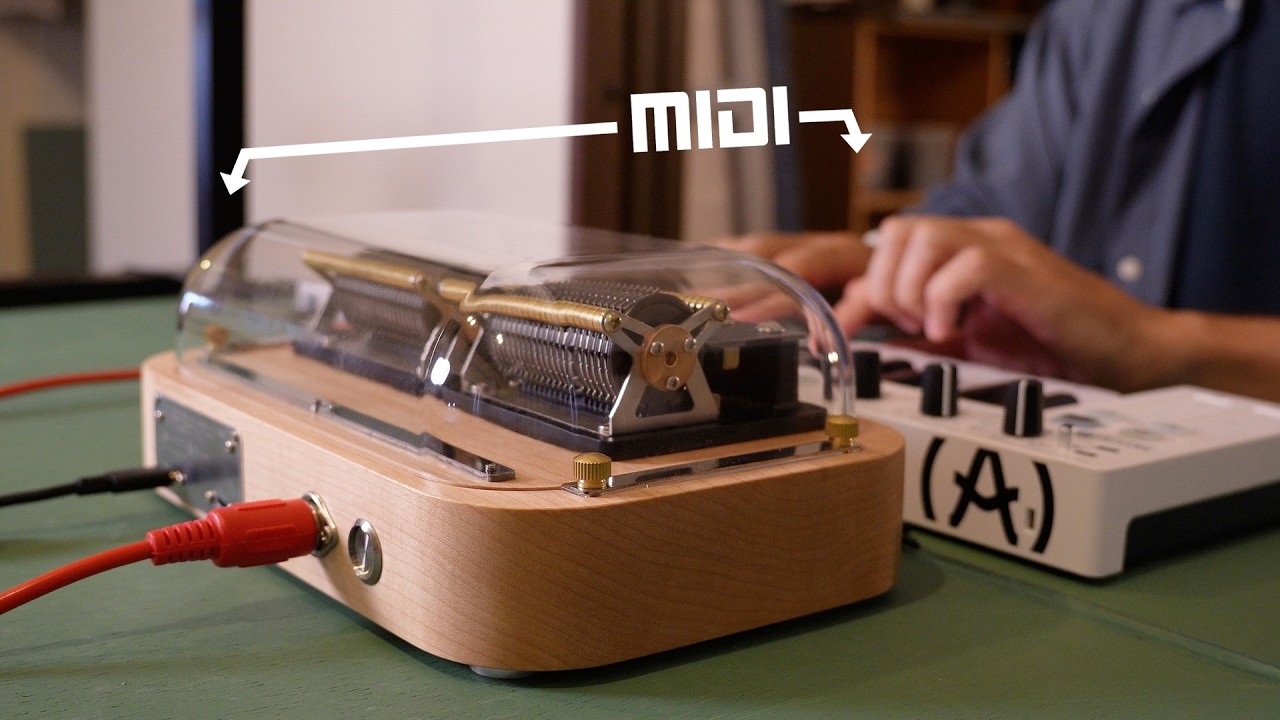
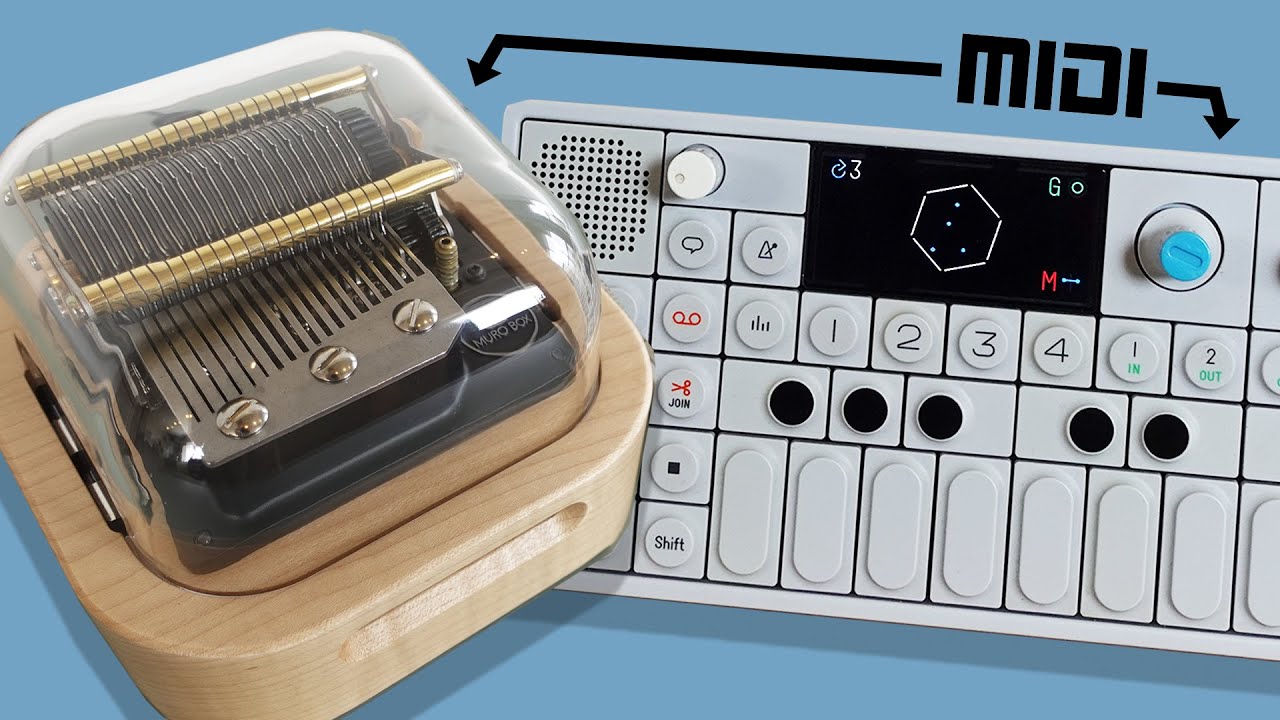
Turn your music box into a *real physical MIDI instrument!

Japanese musician Shawn (Lullatone) opens up his studio to show you his dreamy collection of MIDI gear:
*The classic multi‑function synthesizer KORG Minilogue xd
*Portable music workstations Teenage Engineering OP‑1 / OP‑Z
*The powerful sequencer Arturia BeatStep Pro

All directly connected to Muro Box via MIDI!

Just tap the synth keys or twist the knobs, and Muro Box’s metal comb instantly responds—bringing the “authentic mechanical sound” of a real strike into the digital MIDI world.

➔  Read Full Article: When the Music Box Meets Analog Synthesizer: Bringing Real Time-Strike Action into the MIDI World!

This article explains how to use the free notation software MuseScore to adjust MIDI files downloaded from the internet into a format that can be played on the Muro Box.

It covers steps such as downloading MuseScore, obtaining MIDI files, opening them in the software, adjusting pitch range and octaves, setting instruments and range warnings, and fixing notes that exceed the playable range.

The guide is designed to help users with sheet music reading skills edit MIDI files so the music box can perform their favorite songs.

➔ Read Full Article: How to Adapt My Favorite Sheet Music/MIDI File into a Playable Version for the Muro Box

In this guide, we break down practical arranging techniques for the Muro Box N20 and N40: master transposition and note substitution, navigate consecutive repeated notes and polyphony limits, and make creative use of arpeggios and register shifts. We also cover free MIDI range-checking tools and a step-by-step tutorial on exporting punch-tape sheet music directly from the app.

➔ Read Full Article: How to Unleash Your Creativity in Arranging Music Box Melodies

Device Connection (App & MIDI Setup)

a

Click the button below to download the App, or search for “Muro Box App” on the App Store or Google Play. After installation, create an account and follow the on-screen instructions to complete your music box connection setup. Once connected, you’re ready to start using Muro Box.


google-play-badge_en


Download_on_the_App_Store_Badge_US

First, ensure the music box is properly powered on. If you have recently changed your Wi-Fi password, router, or moved the music box to a different location, please re-pair and reconnect the music box in the App. When the App displays “Cannot connect to server,” try tapping the play button or switching tracks to automatically restore the connection, and confirm that your phone’s network connection is stable. If error messages frequently appear, it is usually due to version incompatibility—please update the Muro Box App to the latest version.

If the issue persists, directly tap the gear icon in the bottom-right corner of the Muro Box App toolbar, select “Report a Problem,” and fill out the form. The system will automatically include your device model and serial number to facilitate efficient troubleshooting by our engineers. If the App cannot be opened, you may seek official assistance via the official problem report form or by emailing support@tevofy.com.

  1. Ensure that Bluetooth is enabled on your phone and that your Muro Box is connected to a stable Wi-Fi network.
  2. Open the Muro Box App, tap the gear icon in the lower right corner of the toolbar , then select “Music Box Settings” > “Firmware Update.” If a new firmware version is available, the system will display an update prompt.
  3. Start the upgrade: After tapping “Update Firmware,” the music box will automatically begin downloading and installing the update.

⚠️ Please note:

  • Do not disconnect power: During the update process (which typically takes only a few minutes), do not unplug the power cord or turn off the music box, as this may cause damage to the system.
  • Maintain network stability: Ensure that the Wi-Fi signal for your music box is stable to avoid download interruptions.
  • Retry and report issues: If the update success message does not appear after more than five minutes, unplug and replug the power cord and try updating again. If the issue persists after multiple attempts, please contact us via the problem report feature.

Yes! One Muro Box can be linked to multiple accounts at the same time, allowing family and friends to share the same music box.

  • How to add a new linked account?
    1. Install the Muro Box App on a new phone or tablet.
    2. Log in to the Muro Box account you want to link.
    3. Follow the in-app instructions to complete pairing with the Muro Box. (Refer to the video for guidance.)
    4. After pairing is complete, you can use the App to control the same Muro Box.
  • How to view or remove linked accounts?
    1. Open the App.
    2. Tap the gear icon in the lower-right corner to enter “Settings” > tap “My Muro Box”.
    3. Select “Linked Accounts” to view the currently connected accounts.
    4. To remove an account, tap the “–” on the right side of the account to unlink it.
  • After multiple users are connected, each user can jointly edit the offline playlist, set their own scheduled playback, and remotely control the same Muro Box through the App. Whether it’s sharing with the whole family, interacting with a partner, or creating a surprise by playing a song remotely on a birthday or anniversary, it can be easily achieved.

App Tutorial & Features

a

Our music library is continuously updated with new songs by talented arrangers who frequently upload and share their work with the community. Furthermore, we have completed integration with Musicboxmaniacs.com (MBM), the largest music box community, expanding our library to nearly 50,000 songs. You can freely browse, search, and add songs to your playlists from this vast collection. Additionally, we offer official songs for your default listening (30 songs for N20; 15 songs for N40).

For a complete illustrated guide, please refer to the detailed tutorial on APP composition and settings.

  1. Create a New Composition: On the APP home page, tap the pen and staff icon in the bottom menu to enter “Compose.” Then tap the “+” icon in the upper right corner and select “Freestyle Composition.”


  2. Song Information Settings:In the composition settings page, you can configure the song photo, track name, description, style, rhythm, tempo, visibility (public/private), and whether comments are allowed. When selecting the range, ensure it corresponds to your Muro Box model (e.g., 20-note or 40-note) so that the notes you compose fall within the playable range of the music box.


  3. Edit Notes:Enter the piano roll composition interface. You can tap directly on the grid squares to add or delete notes (tap again to delete). Press and hold a note to adjust its position.


  4. Save: After completing the note arrangement, tap the settings icon in the upper right corner. You can freely modify the track name, tempo (BPM), and sharing permissions. Finally, press “Save” to finalize your custom composition.

No, you don’t. You can consider the Muro Box as an “unlocked” or “one-time purchase” music box.

  1. Open the Muro Box App.
  2. Tap the circular profile photo icon in the upper left corner to enter the “Personal Information” page.
  3. Tap “Edit Personal Information” to edit your photo, nickname, email, location, website, bio, etc. You can use this area to promote your social media accounts.
  1. Open the app and tap the “cloud note” iconat the bottom left to enter the “Music Library.” You can browse popular songs, newly added songs, or explore playlists categorized by themes such as classical, pop, and anime. You can also view the latest MBM tracks, which are synced with the cloud every hour.|

  2. Tap the “magnifying glass” search icon at the top right of the screen, then directly enter the song title, artist, or creator name to quickly find the desired track in the cloud library.

  3. Next to a song, a “20” marker indicates the 20-note musical scale and model, while a “40” marker indicates the 40-note scale and model.

The Muro Box music box plays MIDI files, and the hardware itself has flash memory that can store up to 1,024 songs.

The music box can directly play the last synced offline playlist by simply pressing the knob.

However, we recommend that you create additional playlists to categorize your collection, such as by genre or tempo: sleep, pop, classical, 80s hits, etc. This way, you can play different playlists according to the situation, enhancing your listening experience.

To adjust the songs in the offline playlist. you need to connect the music box to the app, where you can add or remove songs from the offline playlist or drag them to change their orders in the offline playlist.

  1. Open the Muro Box App.
  2. Tap the circular profile photo icon in the upper left corner to enter the “Personal Information” page.
  3. Tap “Notification Settings.”

    You can enable or disable each notification according to your needs, including:

    – Someone likes your tune
    – Someone adds your tune to their collection
    – Someone leaves a comment on your tune
    – Your tune ranks among the top 5 popular tunes
    – Someone follows your playlist

The settings will be saved automatically after completion. You can return at any time to adjust your notification preferences.

Muro Box APP automatically translates song titles based on your phone’s language by default. If you prefer to display the original song titles as set by the author, please follow these steps to disable auto-translation:

  1. Access Personal Settings: Tap your profile icon (circular avatar) in the upper-left corner of the APP screen to enter the Personal Settings page, then tap “Translation.”

  2. Toggle the “Auto-translate” switch to off.

The Muro Box (programmable music box) not only inherits traditional mechanical craftsmanship but also fulfills customer wishes through its App, introducing features such as random playback, alarm mode, offline playlist replacement, optimized Bluetooth pairing, motor speed adjustment, and new song notification.

➔ Read Full Article: Muro Box App Features Developed Based on Customer Requests


Hardware Maintenance & Troubleshooting

a

The one-year warranty and three-year limited repair service for this product are only available to customers who purchase through our company or designated partners.

One-Year Limited Warranty: Starting from the date of shipment, this covers defects in materials or assembly but excludes other accessories and damage caused by improper use by the consumer.

Three-Year Limited Repair Service: Shipping and repair costs will be calculated based on the actual situation.

Please Note: The warranty will be void if you open the Muro Box yourself. If repairs or inspections are needed, do not open the device yourself. Please return it to us to check if the issue is covered under the warranty.

Muro Box product specifications are as follows:

Power Adapter
Output Voltage: 15V
Rated Current: 3A
Rated Power: 45W
Input Voltage: 90~264VAC
Frequency Range: 47~63Hz
AC Current (Typ.): 1A/115VAC ; 0.5A/230VAC

Muro Box-N20 Standard
Operating Voltage: 15V
Operating Current: 2.5A
Product Dimensions (mm): 135(L) x 135(W) x 105(H)
Weight: 1.0 kg

Muro Box-N40 Standard
Operating Voltage: 15V
Operating Current: 3A
Product Dimensions (mm): 250(L) x 160(W) x 95(H)
Weight: 2.3 kg

Muro Box-N40 Sublime
Operating Voltage: 15V
Operating Current: 3A
Product Dimensions (mm): 250(L) x 160(W) x 95(H)
Weight: 4 kg

  1. In-App “Report an Issue” (Recommended): Open the Muro Box app, tap the gear icon in the bottom-right corner , then select “Report an Issue” to fill out the form. The system will automatically include your device OS version and product serial number, allowing the engineering team to quickly and precisely identify and resolve any issues.


  2. Official Email: For non-technical inquiries, feel free to write to our customer service email at: support@tevofy.com


  3. Social Media Customer Service :
    – Facebook Fan Page
    – WhatsApp

Due to the complexity of battery transportation safety regulations, we decided from the very beginning of the design process not to include a battery, allowing the music box to be shipped to as many countries as possible.

If you need to use the music box on the go, the N20 Standard, N40 Standard, and N40 Sublime all support USB-C power banks, allowing you to easily take the music box anywhere you go.

Compatible power bank specifications: Minimum of 45W USB-C power supply. Please use a model that supports 15V voltage and at least 3A current (45W 15V/3A).

For example, the following power bank is one of the models we used in internal testing: 

https://www.mi.com/global/product/mi-50w-power-bank-20000/

To ensure optimal sound quality and stability, we do not recommend assembling the mechanical movement yourself.

Minor errors during assembly can affect resonance or damage delicate components. If you are willing to accept the risks and wish to purchase a DIY movement kit, please email your intended use to: support@tevofy.com.

For a perfect hands-on experience, we highly recommend our “DIY Cylinder Assembly Course”!

Purchase the course in our store and book a visit to our Taipei office. You will receive 1-on-1 guidance directly from the Muro Box founders, allowing you to build your own music box and explore our patented design safely.

First, ensure the music box is properly powered on. If you have recently changed your Wi-Fi password, router, or moved the music box to a different location, please re-pair and reconnect the music box in the App. When the App displays “Cannot connect to server,” try tapping the play button or switching tracks to automatically restore the connection, and confirm that your phone’s network connection is stable. If error messages frequently appear, it is usually due to version incompatibility—please update the Muro Box App to the latest version.

If the issue persists, directly tap the gear icon in the bottom-right corner of the Muro Box App toolbar, select “Report a Problem,” and fill out the form. The system will automatically include your device model and serial number to facilitate efficient troubleshooting by our engineers. If the App cannot be opened, you may seek official assistance via the official problem report form or by emailing support@tevofy.com.

Both the N20 Standard, N40 Standard, and N40 Sublime use USB-PD and can be powered by a portable power bank, allowing you to take your Muro Box wherever you go.
(Note: The N20 Lite uses a traditional DC power supply and does not support this external power bank functionality.)

Compatible power bank specifications: Minimum of 45W USB-C power supply. Please use a model rated for 15V voltage and at least 3A current (45W 15V/3A).

For example, the following power bank model is one we have used in our internal testing: https://www.mi.com/tw/20000mAh-mi-power-bank-3-pro/specs/

  1. Ensure that Bluetooth is enabled on your phone and that your Muro Box is connected to a stable Wi-Fi network.
  2. Open the Muro Box App, tap the gear icon in the lower right corner of the toolbar , then select “Music Box Settings” > “Firmware Update.” If a new firmware version is available, the system will display an update prompt.
  3. Start the upgrade: After tapping “Update Firmware,” the music box will automatically begin downloading and installing the update.

⚠️ Please note:

  • Do not disconnect power: During the update process (which typically takes only a few minutes), do not unplug the power cord or turn off the music box, as this may cause damage to the system.
  • Maintain network stability: Ensure that the Wi-Fi signal for your music box is stable to avoid download interruptions.
  • Retry and report issues: If the update success message does not appear after more than five minutes, unplug and replug the power cord and try updating again. If the issue persists after multiple attempts, please contact us via the problem report feature.

Regardless of whether you are using the N20 or N40 series, the physical button reset procedure is the same.

  1. Find a soft cloth to put on a table before you put the Muro Box upside down. This soft cloth should protect the lid of the Muro Box from being scratched by accident.

  2. Find something tiny and hard like a needle so that you can insert it to the reset hole for resetting the Muro Box to its factory check mode.
    【Regarding the location of the reset hole: Please turn the music box over. You will see a small, circular hole (approximately 2 mm in diameter) in the center of the base. This is where the reset button is located. 】

  3. Push the reset spot with the needle in the unpowered Muro Box. Hold this needle in the reset hole and then connect the power cord of the Muro Box and continue holding this needle for 5 seconds.

  4. Remove the needle from the reset hole. Wait for the short default melody playing by the Muro Box to tell you the rest step is completed.

Muro Box’s mechanical components, including the comb, solenoids, and gears, are designed for long-term durability and have undergone rigorous endurance testing. Under normal use and proper environmental conditions, there are no components that are expected to fail regularly or require routine replacement.

The lifespan of the following parts may be affected by usage habits and environmental conditions:

  1. Power adapter and USB-C cable: Please use a USB-C PD power adapter rated at 45W or higher to ensure stable operation of the music box.

  2. Wooden enclosure: Although it is not a consumable part, natural wood is sensitive to sudden changes in temperature and humidity, which may cause warping. For example, avoid moving the music box directly from a snowy outdoor environment into a warm indoor space, or placing it in an extremely dry environment near a heater.

  3. To protect the internal components and motor, Muro Box automatically reduces its playback speed after 3 hours of continuous operation. We also provide a 1-year warranty and 3-year repair service. Please do not disassemble the music box yourself.

The motor of the music box does produce some noise. However, every unit undergoes a full functional inspection before shipping, including checks for unwanted sounds, so all units meet our shipping standards. Regrettably, the motor noise cannot be completely eliminated.

Motor noise is indeed one of the current challenges for Muro Box. At present, the only way to reduce motor noise is to lower the motor speed through the app. The default factory setting is 85% speed. When the speed is reduced, the motor noise also decreases, but the rhythm of the music may become slightly unstable, giving it a “swing-like” feeling. Therefore, adjustments must be made based on actual usage.

The mechanical design of the N20/N40 music boxes has already reached its current structural limit. Although the motor sound can be heard, during playback it is not as prominent behind the melody. This is also part of the unique characteristic of a mechanical music box being “alive.”

Just received your N40 and not sure where to start? Follow our step-by-step guide to quickly complete resonance box assembly, basic app setup, and key precautions:

N40 Quick Start & Operating Guide

Just received your N20 and not sure where to start? Follow our step-by-step guide to quickly unpack, learn the basic app setup, and review key precautions:
➔N20 Standard User Manual

➔N20 Lite  Manual

Orders, Payments & Shipping

a

For individual customers, please visit our official online store to place your order directly.

If you would like to discuss B2B sales cooperation with us, please contact us via the online form. In your message, please describe the main characteristics of your target customers, how you plan to introduce and distribute Muro Box products through your sales channels, and whether you can provide local customer support.

Shipping Time for Orders on Our Official Website: shipping is within 7 business days. For rush orders, please confirm with customer service first.

We will use the website provided by DHL to estimate the local import duties based on the product price. If you need assistance with the estimation, please email us at support@tevofy.com.

We offer secure and convenient online payment methods:

Credit Card Payment (International Cards Accepted): Our official website fully supports major global credit cards (e.g., VISA, MasterCard, JCB) for one-time full payment.

Installment Payment: The official website currently does not directly provide online installment services. If you require installment payments, we recommend contacting your credit card issuer after completing the transaction to apply for “statement installment” or “single transaction installment” for that purchase.

Foreign Currency Payment Notice: For international customers using non-NTD cards on our website, the payment will be settled by the bank at the real-time exchange rate, and your issuing bank will charge an overseas transaction fee.

  • Scope: This return policy applies to Muro Box brand music box products purchased through the Muro Box official website (www.murobox.com) or other platforms from Tevofy Technology Ltd. or authorized distributors.


  • Return Conditions:

    • The product must be in new or like-new condition, with no visible damage or stains.


    • All original accessories must be returned in full.


    • Customers must submit a return request within 14 days of receiving the product to qualify for a full refund.


  • If the product shows obvious signs of use, missing components, or damage, returns or refunds will not be accepted.


  • Return Process:

    • Please contact Tevofy Technology Ltd. customer service team at support@tevofy.com and provide your original order number for identification.


    • If necessary, we may ask you to provide additional purchase information to verify your return request.


    • We will provide you with a return address in your region (a freight forwarding warehouse or authorized distributor office).


    • Please return the product in its original packaging and include the following:

      – A copy of the invoice

      – A note explaining the reason for return

      – Contact information (email and phone number)


  • Refund Policy:

    • After the product is confirmed received, we will notify you via the email you provided.


    • The refund amount will be calculated after deducting taxes, shipping costs, customization service fees, and processing fees, and will be returned to the original payment method.


    • Once the refund is processed, we will notify you via email or other online means.

N20 Unboxing Video

Playlist

2 Videos

N40 Unboxing Video

Playlist

7 Videos

Contact Us

If you have any questions, please contact us and our team will be happy to assist you.
▸ Official WhatsApp
▸ Facebook: @Muro Box Global 
▸ Email:support@tevofy.com
▸ Phone:+886-2-2974-4649